

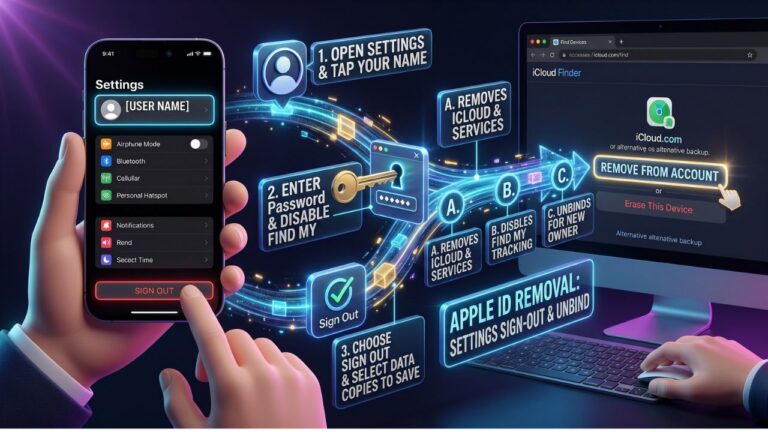
Knowing how to remove Apple ID from iPhone safely is important when switching accounts, selling a device, or fixing a sign-in problem. Apple now calls Apple ID an Apple Account, which connects iCloud, Find My, App Store purchases, and other services. The right method depends on ownership, whether you are keeping the phone, and Activation Lock. Signing out, erasing a device, and permanently deleting an Apple Account are three different actions with different consequences.
The process starts in Settings, but photos may still be syncing and important files may exist only on the phone. This guide explains nine safe steps and the most common problems, using Apple’s current support guidance rather than unverified unlock tricks.
What Does Removing an Apple ID Actually Mean?
Removing an account from an iPhone normally means signing out of the Apple Account associated with that particular device. It does not delete the account itself. You can still use the same account on another iPhone, Mac, or supported device, and information already stored in iCloud remains in that account. Some data or services will no longer be available on the signed-out phone, depending on the options selected.
An iPhone signed in to an Apple Account can use iCloud Photos, iCloud Drive, backups, saved passwords, Find My, the App Store, and other services. Signing out changes that relationship. If you are giving the phone to someone else, you should also erase its contents and confirm that Activation Lock has been removed. If you are only changing the account used by your own phone, erasing everything may be unnecessary.
Apple ID Versus Apple Account
Apple Account is the current name for the sign-in that was formerly called Apple ID. Older articles, devices, and prompts may still use the older wording. The relevant Settings page appears under your name. Account credentials and the phone passcode serve different purposes, even when Apple allows passcode verification.
How to Remove Apple ID from iPhone in 9 Safe Steps
1. Confirm That the Signed-In Account Is Yours
Open Settings and tap the name displayed at the top. Check the account details before changing anything. If the account belongs to a family member, employer, school, or previous owner, you may need their cooperation or an administrator’s assistance. Never attempt to defeat ownership protections simply because the phone is in your possession.
Before selling, complete sign-out and erasure yourself. If a used phone shows another person’s account, contact its seller. Physical possession alone does not provide authority to sign out someone else’s account.
2. Back Up Important Information First
Make a recent backup and check that any essential photos, notes, contacts, and files have finished synchronizing. Apple recommends verifying that recently changed iCloud information has reached the cloud or another trusted device before signing out. Do not interrupt an ongoing iCloud backup. Save separate copies of material that is not included in your backup or is stored only within a particular app.
Complete transfers before erasing an old phone. Some content is local, while other content is synced. A backup is especially important when you are unsure whether a document or photo exists elsewhere.
3. Decide Whether You Want to Keep the Phone’s Data
For anyone researching how to remove Apple ID from iPhone without deleting data, this decision determines which sign-out option to choose. If the iPhone remains yours and you simply want to change accounts, you may prefer to sign out without erasing. If you intend to sell, give away, or trade in the phone, you should prepare it for a clean handover and remove your personal content.
Apple’s newer iPhone software offers options including Sign Out But Don’t Erase and Erase this iPhone. The wording and sequence can differ on older iOS versions. Read the on-screen explanation carefully rather than choosing an option because it sounds faster. Keeping data on a phone that will belong to someone else creates privacy and account-mixing risks.
4. Open the Sign-Out Controls in Settings
On an iPhone using current software, open Settings, tap your name, and scroll to the bottom of the Apple Account page. Select Sign Out. The phone may ask whether you intend to erase the device or keep its content. If you only want to remove the account while continuing to use the iPhone, choose the non-erasing option when it is available and appropriate.
Apple’s guidance for iOS 26 and later identifies the new choices explicitly. For iOS 18 and earlier, the workflow may instead ask for the Apple Account password and present options to keep certain data. Follow the wording displayed on your device rather than forcing instructions from a different software version.
5. Complete the Required Identity Verification
Enter your Apple Account password or device passcode when Apple’s own sign-out process requests it. Verification is a security control, not an inconvenience to evade. Find My and Activation Lock are designed to discourage unauthorised reuse of a lost or stolen device. If you cannot verify ownership, stop and use Apple’s account recovery or support procedures.
On some devices, Stolen Device Protection may require biometric authentication and a security delay before sensitive account changes can proceed. This may include signing out. Do not disable protective features through questionable third-party utilities. Allow the legitimate verification sequence to complete and make sure trusted contact information is up to date.
6. Review What Happens to iCloud Data
When you sign out, the phone stops using that account for services including iCloud, Find My, and several Apple media features. Apple says information stored in iCloud stays available in the account, while information on the iPhone may be removed or retained depending on the selected option. Confirm what will remain before approving the process.
If you select Sign Out But Don’t Erase, some information may stay locally on the phone. Apple warns that signing in with a different Apple Account after a non-erasing sign-out can cause remaining local data to merge with the newly signed-in account and sync to its other devices. This is a major reason to erase a phone before giving it away rather than simply leaving a previous owner’s content behind.
7. Verify That Sign-Out Has Finished
Return to Settings and check whether the original name and Apple Account controls are gone or replaced by the option to sign in. Review the state of iCloud services and confirm that the intended account is no longer active on the device. Do not assume that a button press completed successfully if you saw an error message or a verification request.
If you are changing accounts on your own iPhone, you can now sign in with the intended Apple Account and check what data is available. If you are selling the phone, do not stop at this point: a properly erased device provides stronger protection against accidental disclosure of your personal information.
8. Erase the iPhone Before Selling or Giving It Away
After completing your backup and transferring needed information, go to Settings, General, Transfer or Reset iPhone, then Erase All Content and Settings if a full erase is still needed. Follow the prompts, including the device passcode or Apple Account credentials when requested. Apple’s supported erase process removes personal content and, when completed correctly with the necessary authorisation, turns off Find My and Activation Lock.
If the phone uses eSIM, choose the option to erase the eSIM profile when preparing the device for a new owner. Arrange any required cellular service transfer with your carrier. If you are keeping the phone, a full erase is normally unnecessary just to switch accounts.
9. Confirm the Phone Is Ready for Its Next Owner
A device being sold or given away should reach the initial setup experience without requiring your Apple Account for activation. Do not complete setup using your credentials for the buyer. Check that your old phone is no longer an unwanted trusted device in your account, and remove it from the appropriate account list where necessary. If an Apple Watch was paired, follow Apple’s instructions to unpair it before completing the transfer.
Buyers should verify the phone is not linked to another account. An iPhone Locked to Owner screen means the handover is incomplete. Resolve that through the linked account holder or Apple’s official ownership-support route before treating the transaction as finished.
How to Remove an Apple Account Without Erasing the iPhone
Sometimes the goal is to switch accounts while continuing to use the same device. In that case, the non-erasing sign-out option may be appropriate. Back up your personal files, sign out through Settings, inspect what information remains, and only then sign in with your other account. Consider whether local contacts, photos, and documents should be removed or separated before another account begins synchronizing.
What Happens to Photos, Contacts, and Apps?
Photos and documents already stored in iCloud do not disappear from the cloud merely because you sign out of a phone. Their availability on the phone depends on local downloads, syncing state, and the choices offered during sign-out. App Store purchase history remains associated with the account that originally acquired the purchases; a different account does not automatically inherit every purchase or subscription.
Do not manually delete synced photos or contacts while still signed into iCloud as a substitute for signing out. Deleting synced information can remove it from the cloud and other connected devices. Follow Apple’s sign-out and erase instructions instead, then verify the results.
Avoid Mixing Two People’s Personal Information
The Sign Out But Don’t Erase feature is designed for situations where retaining content on the same device is intentional. It is a poor substitute for a proper erase when ownership changes. If a new user signs in and local information remains, their cloud data may merge with that information. For handovers, complete a verified backup, erase the phone, and let the new owner start from a clean setup.
How to Remove Apple ID from iPhone If You Forgot the Password
If you are researching how to remove Apple ID from iPhone without a remembered password, start with Apple’s legitimate password reset process. A trusted iPhone or another signed-in device is often the simplest place to change the password through the account security settings. Depending on the situation, Apple may allow verification through your device passcode or other trusted factors. Some requests require additional account recovery steps, and the waiting period cannot always be accelerated.
Recover the Account Before You Reset the Phone
Try a recognised email address or phone number associated with your Apple Account and review trusted devices or recovery options. If you can still use an already trusted device, follow Apple’s password-change prompts there. If you have lost access to recovery factors, request account recovery through Apple. Keep proof of purchase and account details available where appropriate, but never disclose passwords to someone claiming to unlock devices informally.
Can You Remove the Account Without Its Password?
Some supported sign-out situations may offer a device-passcode-based verification method, but that does not mean any phone can be detached from its owner without authorisation. Activation Lock is specifically designed to preserve the link to the legitimate account. Restoring the phone with a computer does not provide a guaranteed or legitimate shortcut around Activation Lock. Avoid websites selling permanent bypasses or asking for confidential credentials.
Removing a Previous Owner’s Apple ID From a Used iPhone
For readers asking how to remove Apple ID from iPhone when it was previously owned, the first step is contacting that owner if the device is locked. They can follow Apple’s instructions to remove the device from their account using Find My, including a supported web process. Once the account holder completes the removal, restart the setup process and confirm that activation proceeds normally. Do not ask the seller to share their password with you; they should perform the account removal themselves.
When the Previous Owner Cannot Be Contacted
An unfamiliar Apple Account on the Activation Lock screen is a significant purchasing risk. Ask the seller for a refund or resolution if they cannot demonstrate that the device is ready for activation. Apple provides an Activation Lock support request process for qualifying owners who have acceptable proof of purchase documentation. Support eligibility is determined by Apple’s requirements, not simply by a claim that you bought the phone through an online listing.
Buying a Used iPhone Safely
Before paying, confirm that the device has been erased, is not marked as locked to an owner, and can proceed through setup without another person’s Apple credentials. Check the physical condition and available service information as well. A discounted price is not worthwhile if the phone cannot be activated legally and reliably.
Why Is Sign Out Greyed Out or Unavailable?
If Settings displays a restriction message or the account name is greyed out, Screen Time controls may be responsible. Apple’s current instructions direct users to check the Screen Time passcode and the Content & Privacy Restrictions settings. For an account changes restriction, the Accounts setting may need to be changed to Allow by someone authorised to administer those controls.
Check Screen Time Account Restrictions
Open Settings, Screen Time, then inspect the available restriction controls. Apple’s current guidance describes checking Manage Screen Time and the Screen Time passcode, as well as Content & Privacy Restrictions, Allow Changes to Settings, and Accounts. The exact labels can vary by software version. If the device is managed by a parent, guardian, school, or employer, contact the authorised administrator rather than attempting to evade their controls.
Understand Stolen Device Protection Delays
Stolen Device Protection may require Face ID or Touch ID and, in certain situations, a security delay before signing out. These checks are intended to protect accounts when a device is away from familiar locations or has potentially been taken. A delay is not proof that the iPhone is malfunctioning. Follow the supported prompts and allow the process to finish before trying again.
Sign-Out, Factory Reset, and Activation Lock: Key Differences
Signing out removes the active Apple Account relationship from the device after appropriate verification. Erase All Content and Settings deletes the device’s personal information and settings. Activation Lock is a separate ownership protection associated with Find My that can stop an erased iPhone from being activated by someone who lacks the necessary authorisation. They are related, but one should not be confused with another.
What About Removing the iPhone From Your Device List?
Apple also offers a list of devices signed in to your account. Removing a device from that list can revoke access to some services and trusted-device functions. It should not be treated as the sole step for selling a phone or as a reliable substitute for signing out and erasing it. If you still have the device, complete the removal directly on the phone and verify its activation state before handing it over.
Does a Computer Restore Solve Activation Lock?
A computer restore can erase or reinstall software, but it does not prove ownership or remove the server-side Activation Lock association. A protected phone may still request the original Apple Account during setup.
The Legitimate Recovery Route
Account recovery, the previous owner, or eligible Apple support are the appropriate paths.
Common Mistakes to Avoid Before Changing Accounts
One error is deleting photos individually while the iPhone is still syncing with iCloud, which can delete them from other devices too. Another is choosing a non-erasing sign-out when the phone is about to be sold. Users also overlook linked watches, active cellular eSIM profiles, and trusted-device lists. Each detail can create confusion or leave personal information behind.
Do not share passwords with a buyer or third-party unlock provider, install unknown account-removal utilities, or assume an ordinary reset will defeat Activation Lock. Workplace or school devices may require administrator release. Complete the handover only after setup works without your credentials.
Frequently Asked Questions
1. How do I remove Apple ID from an iPhone in Settings?
Open Settings, tap your name, scroll down, choose Sign Out, and follow the prompts. Back up important data and select the appropriate erase or keep-data option.
2. Can I remove my Apple ID without losing photos?
Yes, if your photos are safely backed up or synced and you choose the appropriate options. Verify which photos remain locally before signing out.
3. How can I remove a previous owner’s Apple ID?
Ask the previous owner to remove the phone through their Apple Account or Find My. Qualifying owners may request Apple’s help with acceptable proof of purchase.
4. Does factory resetting an iPhone remove Activation Lock?
A properly authorised erase can turn off Activation Lock, but restoring or resetting a locked device without the owner’s authorisation does not reliably remove it.
5. Why can’t I tap Sign Out on my iPhone?
Screen Time account restrictions, device management, or Stolen Device Protection can affect sign-out. Review the appropriate settings or contact the authorised administrator.
6. Does signing out permanently delete my Apple Account?
No. Signing out disconnects the account from that iPhone. The Apple Account and information retained in iCloud remain available separately.
Conclusion
Learning how to remove Apple ID from iPhone safely starts with deciding whether you want to keep using the device or transfer it to someone else. Back up your data, use Apple’s supported sign-out controls, and erase a phone fully before sale or gifting. If Activation Lock, account recovery, or restrictions prevent the process, work with the legitimate account holder or Apple’s official support procedures instead of bypass tools. A careful handover protects both your information and the next owner’s ability to activate the iPhone.


