

iPhone Screen Unlock can refer to several different problems: a forgotten passcode, Face ID that suddenly stops recognising you, an unresponsive display, or an iPhone showing a security lockout message. These situations do not share a universal fix. A recently changed passcode may be recoverable without erasing the phone, whereas a forgotten older passcode commonly requires a reset that deletes local data. The safest approach is to identify the exact screen, confirm that you are authorised to use the device, and follow Apple’s supported recovery options. Third-party promises of effortless unlocking can expose your personal information or leave the device unusable.
This guide explains fourteen practical steps, the differences between lock types, and what owners can do to preserve backups and restore access. It also separates the screen passcode from Apple Account credentials, Activation Lock, and carrier restrictions, which are often confused in online tutorials.
What Does It Mean to Unlock an iPhone Screen?
The ordinary Lock Screen protects access to the data on your iPhone. A device passcode, Face ID, or Touch ID is used to authenticate the person operating it. Face ID and Touch ID are conveniences, not replacements for the passcode: iOS requires the code after certain events, including a restart. If biometric recognition fails, knowing the correct device passcode is usually enough to enter the phone.
A Security Lockout or iPhone Unavailable message appears after incorrect passcode attempts. Activation Lock is different: it protects the device during setup and can ask for the Apple Account previously associated with Find My. A carrier lock affects mobile-network compatibility rather than access to the Home Screen. Diagnosing the message correctly avoids unnecessary erasures and unsafe claims about bypassing security.
Decide Whether Your Data Can Be Preserved
If you still know the current code or qualify for Apple’s temporary previous-passcode option, data may remain intact. If you must reset a forgotten passcode, Apple’s official process erases content currently stored on the phone. Data can be restored only if it exists in an available backup or separately synchronised service. Never assume an ordinary software restore will recover photos that were never backed up.
iPhone Screen Unlock: 14 Authorized Steps for Owners
1. Identify the Exact Message on the Display
Look carefully before taking action. A screen requesting your normal passcode is different from one displaying iPhone Unavailable, Security Lockout, or iPhone Locked to Owner. The first may only need the correct code. The second may offer Passcode Reset or an erase option. The third indicates an ownership-linked activation requirement.
Write down the wording and the approximate iOS version if known. If the display is black, cracked, or not responding to touch, the immediate issue may be hardware rather than a forgotten credential. Avoid following a reset tutorial until you understand which condition applies.
2. Stop Guessing Random Passcodes
Repeated incorrect entries can trigger longer lockout periods, making recovery more inconvenient. Try only a passcode you genuinely remember. If you recently changed it, the previous code may still qualify for Apple’s limited reset window. Repeated experiments with combinations are not a reliable recovery strategy.
If a child or family member entered multiple guesses, explain that further attempts can delay access. Determine who normally uses the device and whether the owner remembers the actual code. A careful diagnosis is safer than trying more possibilities without a plan.
3. Check Whether Face ID Can Work Normally
If you know the device passcode but Face ID fails, unlock with the passcode and investigate the biometric settings afterward. Check whether the TrueDepth camera area is obstructed by dirt, a case, or a screen protector. Position your face appropriately and review the iPhone Unlock option under Settings, Face ID & Passcode.
Apple recommends checking for software updates, restarting, and resetting Face ID if necessary. If the camera or enrollment process does not work, seek qualified service. Do not treat a hardware-related Face ID fault as a reason to erase the phone when the correct passcode still works.
4. Troubleshoot Touch ID Without Removing Security
On compatible older models, Touch ID may fail when the sensor or finger is dirty or wet, when the finger does not cover the sensor adequately, or when a setting is disabled. Clean and dry the sensor and your finger, then use the device passcode to enter the phone. Check Touch ID & Passcode settings when accessible.
After a restart or other security-sensitive event, iOS can require the passcode even if the fingerprint reader is working. An unreliable Home button or sensor may require professional repair. Biometric troubleshooting does not provide access to an account or phone you are not authorised to use.
5. Try the Previous Passcode Within 72 Hours
For owners who changed their code recently, this is the first recovery option to investigate. On iOS 17 and later, Apple’s Passcode Reset feature can allow the previous device passcode to be used for up to 72 hours after a change. From a supported lockout screen, tap Forgot Passcode?, select the previous-passcode option when offered, and enter the old code. You must then establish a new passcode.
The feature is conditional. It will not help if the previous passcode has expired, you do not know it, or the option is unavailable. The old code can also be deliberately expired earlier in Settings. When successful, this is particularly valuable because it avoids erasing the device.
6. Prepare Your Apple Account Credentials
If the previous-code option does not work, prepare for an authorised reset. You may need the Apple Account and password associated with the phone. Apple Account is the current name for what many people still call Apple ID. It is separate from the six-digit or custom passcode used to unlock the screen.
Check whether you can sign in to your account using another trusted device. If you have forgotten that password, use Apple’s official password-reset or account-recovery process. Do not give credentials, verification codes, or recovery keys to an unknown unlocking service. Resetting the screen lock does not automatically remove the account’s ownership protection.
7. Check Whether You Have an Available Backup
A forgotten passcode can prevent you from creating a fresh local backup. Before choosing an erase, determine whether you already have an iCloud backup, a computer backup, or separately synced photos and files. Another trusted Apple device may help you verify which data has finished syncing without requiring access to the locked phone.
Distinguish an iCloud device backup from information that synchronises independently, such as some photos or contacts. Recovery depends on the original settings and the backup’s contents. Do not pay for software claiming it can always extract data from a securely locked iPhone; treat guaranteed recovery claims skeptically.
8. Use Forgot Passcode? to Reset on the iPhone
On iOS 17 or later, a locked-out device may display Forgot Passcode? when it has an active cellular or Wi-Fi connection, Find My was enabled, and an Apple Account is signed in. If you cannot use Passcode Reset, follow the displayed reset option. Apple describes confirming the reset, entering the Apple Account password, and choosing to erase the device.
This method removes the current passcode by erasing local data and settings, not by revealing the forgotten code. After the restart, you can set up a new code and restore an eligible backup. For iOS 15.2 or iOS 16, the on-device option may instead be labelled Erase iPhone. Availability varies with software and device state.
9. Understand What Erasing Does to eSIM and Files
When using the on-device reset on iOS 17 or later, Apple’s instructions include a choice to retain or remove an eSIM while erasing content. The right choice depends on whether you will continue using the same cellular service on that phone. For earlier software, your carrier may need to provide information to activate service again.
An erase removes data currently on the iPhone. It does not guarantee that every photo, message, or app setting exists in a backup. Write down essential account-recovery information before beginning whenever possible, and do not proceed on the assumption that the erase itself is a backup procedure.
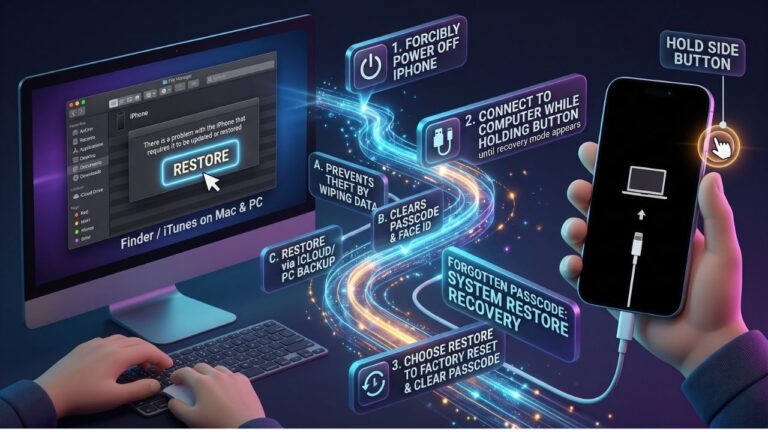
10. Use Recovery Mode With a Mac or Windows PC
If the on-device route is unavailable, Apple supports resetting the passcode with a computer. Prepare a compatible cable, an internet connection, and a Mac or Windows PC. Turn off the iPhone. Then connect it in the model-specific way that starts recovery mode, holding the appropriate button until the computer-and-cable screen appears.
On Face ID models and iPhone 8 or later, Apple generally directs you to hold the side button while connecting. For iPhone 7 models, use Volume Down; for iPhone 6s and the first-generation iPhone SE, use Home. In Finder on a Mac or Apple Devices on Windows, select the device and choose Restore. Follow Apple’s model-specific instructions and allow any required software download to finish. This process erases local data.
11. Set Up the Restored iPhone Carefully
Once the restore completes, the phone displays its initial setup screen. Follow the prompts, connect to an appropriate network, and authenticate using the associated Apple Account if requested. Choose a new passcode that you can remember but others cannot easily guess. Avoid predictable dates and sequences.
If a suitable backup is available, select the appropriate restoration method. Some applications may require new sign-ins or additional verification afterward. Verify important photos, contacts, and work files before assuming recovery is complete. Keep the original account accessible until all necessary data has been checked.
12. Respect Activation Lock on Previously Owned Devices
If the phone shows iPhone Locked to Owner, a screen-passcode reset is not the answer. Activation Lock is associated with Find My and helps prevent a lost or stolen device from being activated by someone else. The legitimate account holder can use Apple’s supported account and Find My processes to release an eligible device.
When buying a secondhand iPhone, ask the seller to complete removal before payment or handover. Apple also has an ownership-support request process for qualifying users with acceptable proof of purchase. A computer restore, unofficial DNS trick, or alleged permanent bypass is not a substitute for authorised ownership verification.
13. Check for Device Management or Hardware Problems
An employer or school may manage an iPhone and impose policies that ordinary users cannot change. Ask the organisation’s authorised administrator for assistance rather than attempting to defeat restrictions. Likewise, a cracked touchscreen or broken button can interfere with passcode entry or recovery mode without indicating that the passcode itself is wrong.
If the device will not enter recovery mode, the buttons do not respond, or Face ID hardware repeatedly fails, consult an Apple Authorised Service Provider or Apple support. For a personal phone, bring relevant ownership documentation when requested. Service technicians cannot promise to recover encrypted data without the required credentials.
14. Strengthen Security After Regaining Access
Once iPhone Screen Unlock is resolved, review your passcode, Apple Account security, trusted devices, and backup settings. Enable an appropriate authentication method and verify that your recovery contact information is current. Keep the operating system updated and avoid sharing unlock codes with anyone who does not need them.
Test that future backups actually complete. If you changed the passcode because someone else learned it, also review account security and any shared access. Good recovery planning reduces the chance that one forgotten code turns into permanent data loss.
Can You Unlock an iPhone Without Erasing Data?
Sometimes, but only under supported circumstances. A person who knows the current code can normally sign in and resolve Face ID or Touch ID trouble without wiping the phone. A user who recently changed their passcode may qualify for the 72-hour previous-code option on supported software. These are not general-purpose methods for removing an unknown lock.
When the passcode is forgotten and no permitted previous-code route exists, Apple’s official reset procedures erase current content. A backup can later restore eligible information, but that is different from preserving the phone’s existing local data through the reset. Distinguish these outcomes when evaluating advertisements for recovery utilities.
Why Encryption Changes the Answer
Modern iPhone security links data protection to device authentication and hardware-backed safeguards. That design is intended to make private information difficult to access without authorisation. It also means a forgotten credential may prevent recovery of information that was never backed up. Claims that an app can reveal any passcode or preserve all files during an unsupported bypass should be treated as warning signs.
What Is the Difference Between Screen Lock and Activation Lock?
The Lock Screen controls day-to-day access to a device that has already been set up. Activation Lock applies during activation and links the device to an Apple Account associated with Find My. A phone can be successfully erased yet still require the owner’s account during initial setup. The two safeguards protect different stages of device use.
Apple Account Lock Versus Carrier Lock
A mobile carrier restriction determines whether a phone can use another mobile network. It does not unlock a forgotten passcode, release Find My, or remove Activation Lock. Similarly, a SIM PIN protects access to the SIM or cellular subscription, not the operating system’s Lock Screen. Ask the relevant provider for help with the specific restriction instead of assuming all locks have the same solution.
A Practical Ownership Check
When purchasing a used phone, request a clean setup and verify that it can activate without another person’s account. A seller who cannot remove Activation Lock should resolve that issue before you complete the transaction. Keep any proof-of-purchase documentation that may be needed for legitimate support.
Fixing Face ID and Touch ID After Access Returns
If the device opens with its passcode but repeatedly rejects biometric attempts, review settings, sensor cleanliness, and the latest software update. Restart and try again under normal conditions. Reset and re-enrol Face ID or Touch ID only when you can authenticate as the owner and the system offers that option. Do not rely on biometric recognition alone; iOS deliberately asks for the passcode in certain situations.
Persistent sensor failures, unusual camera warnings, or damage after repairs may require professional examination. Attempting unqualified modifications to Face ID hardware can create safety and reliability problems. Keeping a strong, remembered passcode and current backups remains essential even when biometric unlocking works perfectly.
Common Mistakes That Make Unlocking Harder
Many problems begin with using the wrong tutorial for the screen shown. Repeated passcode guesses can extend lockouts. Starting an erase without checking cloud backups can lead to permanent loss of local information. Using a computer restore to solve a previous owner’s Activation Lock will not establish ownership. Another mistake is paying for a tool that claims to remove every form of Apple security with no account verification.
A safer iPhone Screen Unlock plan follows a clear sequence: identify the message, try a supported non-erasing recovery option, verify ownership, check available backups, and only then use an authorised reset if necessary. Keep a record of what you tried so official support can better understand the issue.
Frequently Asked Questions
1. Can I unlock an iPhone if I forgot the passcode?
Yes, an authorised owner can use Apple’s supported reset procedures. Except for eligible previous-passcode recovery, a forgotten-passcode reset generally erases current local data.
2. Can I use an old passcode to unlock my iPhone?
On iOS 17 or later, Apple’s Passcode Reset may accept the previous code for up to 72 hours after a change, if the required option is available.
3. Will restoring an iPhone remove Activation Lock?
No. Restoring erases the device, but Activation Lock can still require the associated owner’s Apple Account during setup.
4. Why does Face ID stop unlocking my iPhone?
Obstructions, settings, hardware issues, or normal security requirements may be responsible. Use the correct device passcode and follow Apple’s Face ID troubleshooting guidance.
5. Can I unlock an iPhone without a computer?
Supported iPhones can offer Forgot Passcode? or Erase iPhone options when required conditions are met. Otherwise, a Mac or Windows computer may be needed.
6. Can an unlock tool recover my photos without a backup?
Do not assume so. Apple’s forgotten-passcode reset erases local content, and recovery depends on backups or previously synchronised copies of the information.
Conclusion
A safe iPhone Screen Unlock process begins by identifying whether the problem involves a device passcode, biometric recognition, an unavailable screen, or Activation Lock. The limited previous-passcode recovery option may preserve data, while other authorised passcode resets typically erase the phone before a backup can be restored. Confirm account ownership, protect credentials, and avoid services offering unsupported security bypasses. With current backups and a clear recovery plan, regaining access is more manageable and future lockouts are less disruptive.


