

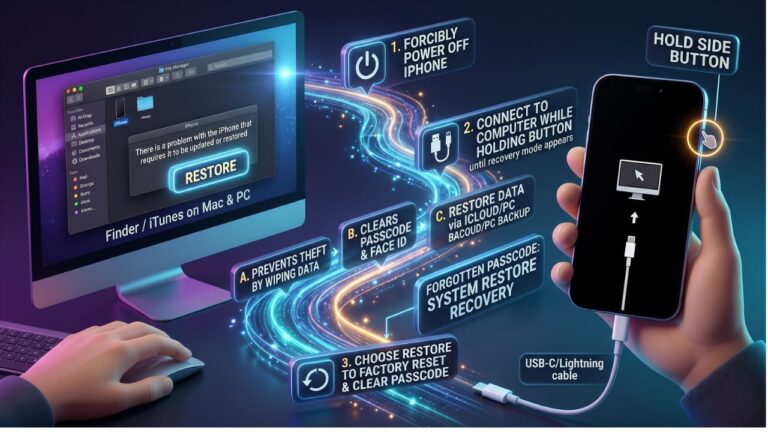
Unlock iPhone without passcode or Face ID is a common search when a device refuses to open and its owner no longer remembers the code. The important fact is that Face ID is not an alternative master key: the iPhone still relies on its passcode for certain security checks. If both methods are unavailable, Apple’s supported recovery procedures generally reset the phone and erase its current local data. There is one important exception when a recently changed passcode can still be recovered with the previous code. Identifying which situation applies can protect your backups and prevent an unnecessary reset.
This guide explains five legitimate recovery paths, the conditions for using each, and the steps to take before and after a reset. It also explains why a device passcode, an Apple Account password, and Activation Lock are different protections. The goal is authorised access without unsafe bypass claims.
First, Identify Why the Phone Will Not Unlock
An iPhone might show a passcode keypad, iPhone Unavailable, Security Lockout, or iPhone Locked to Owner. Each requires a different response. Face ID trouble with a known code usually does not require erasure; a forgotten code is different.
If you purchased a used phone displaying somebody else’s Apple Account during activation, do not treat that as a forgotten screen code. The previous owner must release the device using an authorised method, or an eligible owner must pursue Apple’s support process. A computer restore does not substitute for proof of ownership.
Can You Get Back In Without Losing Data?
Sometimes. On iOS 17 or later, Apple offers a 72-hour window for an eligible previous passcode after you change it. If that feature is available and you remember the old code, you can establish a new one without erasing. If neither the current nor eligible previous code is known, ordinary Apple recovery involves erasure, followed by restoring data from an existing backup or synchronised cloud content where available.
5 Safe Recovery Paths for a Locked iPhone
1. Try the Previous Passcode After a Recent Change
This is the least disruptive possibility, but it is not a universal passcode-free unlock. Apple’s Passcode Reset feature allows a previous code to be used for up to 72 hours after it was changed on iOS 17 or later. The feature may be unavailable if the window has expired or the previous passcode was deliberately expired sooner.
When iPhone Unavailable offers Forgot Passcode?, select the previous-passcode option if available. Enter the old code and set a new one. This verifies prior access rather than bypassing security. If no previous code is remembered, move to the appropriate authorised reset method rather than continuing to guess randomly.
Why This Option Matters
It is the main Apple-supported path in this situation that can retain existing local information. Before choosing any erase option, consider whether the passcode was changed during the previous three days. Do not claim it works on older iOS versions or on a device whose previous passcode you never knew.
2. Reset From the iPhone Unavailable Screen
Some owners can erase and reset a locked iPhone without connecting a computer. Apple’s on-device procedure requires supported software, a working cellular or Wi-Fi connection, Find My already enabled, and the associated Apple Account credentials. On iOS 17 or later, the relevant option is generally labelled Forgot Passcode?; older supported versions may display Erase iPhone.
From the lockout screen, open the available reset option, confirm the reset, and enter the Apple Account password when prompted. Choose Erase iPhone only after understanding that its content and settings will be deleted. When setup begins again, sign in as the authorised owner, establish a new device passcode, and select a suitable backup if one exists.
On iOS 17 or later, the reset flow can include a choice to retain or remove the eSIM while erasing data. Owners who plan to keep their cellular service on the same device may need a different choice from someone giving the phone away. On some earlier versions, the carrier may need to help reactivate an eSIM after erasure.
3. Restore a Locked iPhone With a Mac
If on-device reset is not available, Apple’s computer recovery procedure is the next appropriate route. Prepare a cable, a Mac with internet access, and enough time to complete a software download. Understand first that the passcode reset through recovery mode erases the phone’s current contents. A Mac cannot simply display the unknown passcode or retrieve encrypted local information without the required authentication.
Turn off the device using the button sequence appropriate for its model. On an iPhone with Face ID, hold the side button and Volume Down until the shutdown slider appears. Connect a cable to the Mac, then connect it to the phone while holding the recovery button for that model. On current Face ID models, keep holding the side button until the computer-and-cable recovery screen appears, even if the Apple logo shows first.
Open Finder, locate the iPhone, and select Restore when prompted. If a software download takes long enough that the iPhone leaves recovery mode, allow the download to finish and repeat the recovery-mode entry. Once the restore completes, follow setup and use the associated Apple Account when requested. A suitable backup can restore eligible data, but not information that was never saved elsewhere.
4. Restore Using an Authorised Windows Computer
Windows users can use Apple’s Apple Devices application for the corresponding recovery process. Install or open the current application, connect the iPhone with an appropriate cable, and enter recovery mode using the model-specific hardware buttons. The computer should detect the device and offer a Restore action. Select it and follow the prompts until the reset completes.
The recovery button depends on the model. For iPhone 8 and later, including later iPhone SE models, Apple directs users to hold the side button. For iPhone 7 models, hold Volume Down. For iPhone 6s and the original iPhone SE, hold Home. Use Apple’s current model-specific instructions if the device differs or the buttons do not respond.
Like the Mac route, this erases and reinstalls iOS; it does not preserve unsaved files. If Windows cannot recognise the device, try a known working cable and supported computer setup. A damaged port or button may require professional service rather than an unknown third-party unlock utility.
5. Resolve Activation Lock Through the Legitimate Owner
After a restore, some iPhones request the Apple Account associated with Find My. This is Activation Lock, not the original passcode screen. Enter the credentials for the authorised account if it is yours. If the phone belongs to someone else, ask that owner to remove it using Apple’s supported Find My account procedure. A business or school device may require help from its administrator.
Apple also offers an Activation Lock support request to qualifying owners who have acceptable proof-of-purchase documentation. Eligibility and approval are not automatic. A receipt or claim from an online seller may not meet the requirements. For a secondhand purchase, the safest solution is to require the seller to release and erase the phone before payment or arrange a return if they cannot do so.
These paths fit different circumstances; none bypasses an unknown owner’s protections.
Can You Unlock iPhone without passcode or Face ID Without Erasing It?
For people searching how to Unlock iPhone without passcode or Face ID, the critical limit is that owners who know neither an eligible current nor previous code generally need to erase the device. Face ID does not reveal the passcode, and biometric authentication can be unavailable after a restart or other security-sensitive event. The underlying protection is designed to prevent unauthorised access to personal files, even when someone physically holds the device.
No trusted computer or downloaded utility guarantees preservation of encrypted files. A previously created backup or properly synchronised cloud data is the reliable recovery foundation. If no backup exists, contact official support about the applicable recovery process, but do not expect a promise that local-only data can be saved.
Why Guessing Often Makes Things Worse
Repeated incorrect entries can extend lockouts and cannot reveal the correct code. If you recently changed your passcode, focus on whether the old one qualifies for the 72-hour option. Otherwise, collect your account details and evaluate backup availability before choosing a reset.
What to Check Before Erasing a Locked Device
An erase should be a deliberate decision. First, identify the Apple Account linked to the phone and make sure you can complete its verification process. Next, determine whether important photos, contacts, notes, documents, or messages are already available on another trusted device or in a usable backup. Do not assume every file is backed up.
Understand Backups Versus Cloud Sync
An iCloud device backup and iCloud syncing are not identical. Some information is synced continuously through separate services, while other app settings or local records depend on a backup. A computer backup may also exist, and an encrypted backup may include categories that an unencrypted backup does not. Restoration requires access to the backup and any relevant account or encryption password.
A locked phone may not permit a new backup, making existing copies especially important. Check trusted devices and account records where authorised, and prepare for the possibility that local-only files will not be recoverable after an erase.
Prepare for Two Different Passwords
A device passcode unlocks the screen. Your Apple Account password provides access to account services and may be required during reset or activation. Knowing one is not always a substitute for the other. If the Apple Account password is forgotten too, use Apple’s official password reset or account recovery route. Some recovery requests take additional time and verification; an erase does not bypass those requirements.
What Does iPhone Unavailable or Security Lockout Mean?
These messages generally appear after incorrect passcode attempts. The precise controls vary by iOS version and whether the device meets the requirements for on-device reset. On supported devices with the necessary connection and Find My configuration, Forgot Passcode? can lead either to an eligible previous-code option or to a reset that erases the phone. An absent option does not mean the device has no recovery path; it may require a computer.
Avoid advice that instructs owners to keep entering random codes until a supposed hidden menu appears. Follow the visible Apple recovery prompts, and distinguish a temporary lockout from a device in initial activation. This distinction helps with support.
What If Face ID Suddenly Stops Working?
When the correct device passcode is still known, enter it and troubleshoot Face ID separately. Check the TrueDepth camera area for obstructions, review Face ID settings, restart as appropriate, and verify available software updates. If recognition continues to fail or the camera is damaged, seek qualified service. A failed biometric sensor alone is not a reason to erase a phone when passcode access still works.
If you do not know the passcode, biometric troubleshooting cannot supply a replacement credential. An iPhone can deliberately request a passcode after restart even when the Face ID hardware is healthy.
Activation Lock, Screen Lock, and Carrier Lock Are Different
The ordinary screen lock protects access to the installed operating system and personal data. Activation Lock checks the account relationship when the phone is activated or recovered. A carrier lock restricts cellular networks, not screen access.
An iPhone restored successfully through Finder or Apple Devices may still display iPhone Locked to Owner during setup. That is expected when Find My’s ownership association remains active. The authorised account holder can resolve it through the supported procedures; the restore itself is not proof that ownership has changed.
Buying a Used Phone Without Inheriting a Lock
Ask the seller to erase the device and demonstrate that it can begin setup without requesting the previous owner’s Apple Account. Do not accept an already signed-in Home Screen as evidence that the phone is ready to transfer. If the phone is locked to another account, require the seller to resolve it before completing the transaction. An unusable device is no bargain.
Does Third-Party Unlocking Software Work Without Data Loss?
Be cautious with advertisements offering an instant solution for any locked iPhone. Some products simply repackage a restore process that already exists through Apple’s supported tools. Others make unverified claims about removing security protections or saving data that remains encrypted behind a forgotten passcode. Testimonials are not guarantees.
Before using a tool advertised to Unlock iPhone without passcode or Face ID, examine its actual method, developer, requested access, and limits. Never provide verification codes, recovery keys, or Apple Account passwords to an untrusted service. A tool cannot legitimately establish ownership merely by connecting a cable.
When Professional Help Makes Sense
If the power button, charging port, or touchscreen is damaged, an Apple Store or Apple Authorised Service Provider may help with supported recovery and repair options. A managed business phone may require its IT administrator. Professional assistance can clarify procedures and hardware faults, but should not be advertised as guaranteed access to encrypted files without the required credentials.
After a Reset: Restore Data and Protect the Account
When the Hello setup screen appears, connect the phone to an appropriate network and follow Apple’s activation process. Sign in with the account associated with the device where required. Choose an available iCloud or computer backup and let restoration complete. Apps may continue downloading after setup, and certain services may ask for fresh authentication.
Check That the Recovery Actually Worked
Verify important contacts, photos, notes, banking applications, and work files before declaring the process finished. Some information may need to download again or be reconnected through its original service. If a backup is missing, confirm that you signed in with the correct account and check the available restore choices. Do not overwrite valuable older backups casually while troubleshooting.
Make the Next Lockout Less Disruptive
Choose a strong passcode you can reliably recall, maintain current account recovery information, and confirm that backups complete. Review trusted devices and authentication methods. Face ID is convenient, but the device passcode remains essential for several security-sensitive situations. Regular backup checks are more effective than relying on future claims of a no-data-loss unlock.
Common Mistakes That Cost Owners Time or Data
One mistake is treating a failed Face ID attempt and a forgotten passcode as the same issue. Another is resetting the phone before considering the limited 72-hour previous-passcode recovery. Users also confuse their Apple Account password with their device passcode, or assume restoring iOS removes Activation Lock. These misunderstandings can cause unnecessary erasure or leave a device inaccessible during setup.
Other mistakes include using the wrong recovery-mode button sequence, disconnecting a restore before it completes, and trusting software that requests private credentials. Keep model information and the exact on-screen message available when asking for help. Follow the relevant recovery path instead of experimenting.
Frequently Asked Questions
1. Can I unlock my iPhone if I forgot the passcode and Face ID is unavailable?
An authorised owner can reset the device using Apple’s supported on-device or computer recovery methods. These typically erase local data unless the eligible previous-passcode feature is available.
2. Is there a way to unlock an iPhone without erasing photos?
The 72-hour previous-passcode option may preserve data on supported iOS versions. Otherwise, recovery after erasure depends on an existing backup or separately synced photos.
3. What does Forgot Passcode? do on an iPhone?
On supported locked devices, it can offer previous-passcode recovery or an Apple Account-authorised erase, depending on eligibility and iOS version.
4. Can a Windows computer reset a locked iPhone?
Yes. Apple’s Apple Devices application supports a recovery-mode restore that erases the phone and allows its authorised owner to set it up again.
5. Does recovery mode remove iPhone Locked to Owner?
No. Activation Lock can remain after a restore and must be resolved through the linked owner, an authorised administrator, or eligible Apple support.
6. Are tools claiming to unlock any iPhone without a password safe?
Do not rely on universal bypass or guaranteed data recovery claims. Use Apple’s official methods and avoid sharing sensitive credentials with untrusted services.
Conclusion
The safest way to Unlock iPhone without passcode or Face ID is to identify the lock type before choosing a recovery method. A recent previous passcode may save local data, but most forgotten-passcode resets require erasing the phone and restoring whatever was backed up. Activation Lock remains a separate ownership safeguard that must be resolved through authorised channels. With verified account access, reliable backups, and careful recovery steps, owners can regain use of their devices without relying on misleading bypass promises.


