

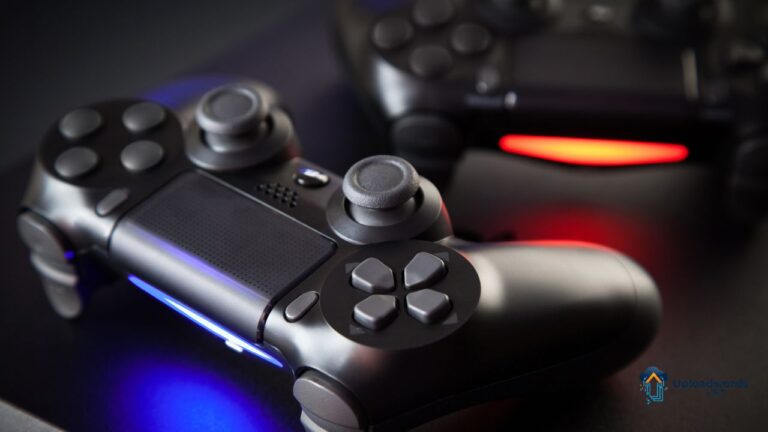
The DualShock 4 has officially entered legacy status, but it’s far from obsolete. In 2026, it remains one of the most widely used controllers in the world—powering PlayStation consoles, PCs, cloud gaming platforms, and handheld devices.
What has changed is the battery. Most PS4 controllers in use today are five to ten years old, which makes battery monitoring more important than ever. Knowing how to check your PS4 controller battery—and how to interpret what you see—can mean the difference between smooth gameplay and a controller that dies mid-match.
This guide walks you through every reliable method to check PS4 controller battery life in 2026, across consoles, PCs, mobile devices, and handhelds, with practical advice tailored to aging hardware.
The 2026 Legacy Status: Why Battery Monitoring Matters Now
The Battery Aging Factor
Lithium-ion batteries degrade over time. In 2026, most DualShock 4 batteries no longer behave like they did when new.
Key changes you may notice:
- Battery drains faster than expected
- Controller shows 100% but shuts off quickly
- Charging slows or stops before reaching full capacity
At this stage, monitoring battery health patterns, not just charge percentage, is essential.
Cross-Platform Surge
The DualShock 4 has become the budget king of controllers. Gamers now use it for:
- Xbox Cloud Gaming
- NVIDIA GeForce Now
- PC gaming
- Android and iOS devices
- Steam Deck and Windows handhelds
With one controller serving multiple devices, knowing how to check battery status everywhere is no longer optional—it’s practical survival.
Method 1: On the PlayStation 4 & PS5 Consoles
The PS Button Shortcut
This remains the fastest and most reliable method.
Steps:
- Turn on your console
- Press and hold the PS button
- Look for the battery icon next to the controller symbol
This shows a visual battery bar that updates in real time.
2026 Update: The “Charging Speed” Alert
Recent firmware updates on PS4 and PS5 systems now display charging behavior.
When plugged in:
- Solid orange glow: normal charging
- Slow pulsing orange: trickle charging (battery nearing capacity or degraded)
- Quick pulsing: fast-charging mode (usually via front USB or official dock)
If your controller only ever trickle-charges, the battery may be nearing end-of-life.
Pro Tip: Auto Power-Off to Preserve Battery Health
To reduce unnecessary battery cycles:
- Go to Settings > Power Saving Settings
- Select Set Time Until Controllers Turn Off
- Choose 10 minutes or 30 minutes
This reduces idle drain and slows long-term degradation.
Method 2: On Windows 11 & Windows 12 (PC Gaming)
Native Windows Bluetooth Reporting
In 2026, Windows finally treats controllers like first-class devices.
How to check:
- Click the System Tray
- Open Bluetooth & Devices
- Select your Wireless Controller
You’ll now see a battery percentage, not just an icon.
This works over Bluetooth and USB, though Bluetooth reporting is more accurate.
Steam’s “New Big Picture” Interface
Steam has effectively become the operating system for PC gamers.
Steps:
- Open Steam
- Enter Big Picture Mode
- Look at the top-right corner
Steam shows:
- Exact battery percentage
- Charging status
- Connection type
For PC gamers, this is the most precise battery reading available.
Advanced Tools: DS4Windows (2026 Edition)
DS4Windows remains the gold standard for power users.
Key 2026 features include:
- Exact percentage readouts
- Battery history tracking
- Lightbar battery indicators
Pro setup tip:
- Green light: 80–100%
- Yellow light: 30–79%
- Red light: below 10%
This lets you know battery status instantly—no menus needed.
Method 3: Mobile & Handheld (iOS, Android, Steam Deck)
iOS & iPadOS Widgets
Apple offers one of the cleanest solutions.
Steps:
- Pair your controller via Bluetooth
- Add the Batteries widget
- View live battery percentage on your home screen
This updates in real time during gameplay.
Android 15/16 Integration
Android’s Bluetooth battery reporting has matured significantly.
Steps:
- Open Settings
- Tap Connected Devices
- Select Wireless Controller
Battery level is displayed clearly, though some manufacturers may show ranges instead of exact numbers.
Steam Deck & Asus Ally Workflow
Handheld gaming systems shine here.
- Steam Deck: overlays controller battery during gameplay
- Asus Ally: Windows overlay shows percentage and charging status
These systems are ideal for tracking battery drain during long sessions.
Troubleshooting: Why Your PS4 Battery Reading Is Incorrect
The “Ghost Charge” Issue
If your controller shows 100% but dies shortly after unplugging, you’re experiencing ghost charge.
This happens when:
- Battery calibration drifts over time
- Controller firmware misreads voltage levels
Fix:
- Let the controller drain completely
- Power it off
- Charge uninterrupted to full
Repeat once to recalibrate the battery logic.
Resetting the Internal Logic
If readings remain unreliable:
- Turn off the controller
- Use a paperclip to press the pinhole reset button on the back
- Hold for 5 seconds
- Re-pair the controller
This resets internal battery reporting software.
2026 Battery Maintenance: Extending the Life of Your DS4
Avoid Overnight Charging
Legacy batteries don’t handle constant top-off charging well.
Best practice in 2026:
- Use smart plugs or USB hubs with auto shut-off
- Disconnect once fully charged
This reduces heat stress and capacity loss.
The “30–80 Rule”
Keeping your battery between 30% and 80% can dramatically extend its lifespan.
Why it works:
- Avoids deep discharge stress
- Reduces voltage strain at full capacity
- Slows chemical degradation
For older controllers, this can double remaining usable life.
FAQ: Common Questions (2026 Edition)
Can I check my PS4 controller battery percentage on a Mac?
Yes. macOS shows battery percentage in the Bluetooth menu once connected.
Why is the lightbar flashing orange?
Flashing orange means the controller is charging. Slow pulsing usually indicates trickle charging.
How long should a PS4 controller battery last in 2026?
Most aging batteries last 4–8 hours, depending on wear and usage.
Is there an app to check PS4 controller battery on Android?
Battery status is built into Android 15/16. Third-party apps may offer more detail but aren’t required.
Does the PS5 DualSense charger work for PS4 controllers?
Yes. Charging docks and cables are compatible, though charging speed varies.
My PC says my controller is at 0% but it’s still working—why?
Battery calibration is likely inaccurate. Perform a full drain and recharge cycle.
Can I replace the internal battery myself?
Yes. Replacement kits are inexpensive, but quality varies. Choose reputable brands.
How do I know if my PS4 controller battery is permanently dead?
If it only works while plugged in and won’t hold any charge, the battery has failed.
Conclusion: Control the Battery, Control the Experience
In 2026, knowing how to check PS4 controller battery life is no longer just a convenience—it’s essential maintenance for legacy hardware. Whether you’re gaming on console, PC, mobile, or handheld devices, accurate battery monitoring prevents interruptions and extends controller lifespan.
Actionable takeaways:
- Use native device tools whenever possible
- Recalibrate batteries showing false readings
- Avoid overnight charging
- Follow the 30–80 rule
Treat your DualShock 4 battery wisely, and it will continue to serve you well—even in its legacy years.

As a digital marketer, she has received multiple international awards, including Campaign of the Year at the 2023 European Content Awards and Best Use of Content Marketing at the 2022 Global Search Awards. Nicai holds an MSc in Marketing (First Class Honours) from the UCD Smurfit Graduate Business School and she has also completed the Artificial Intelligence Programme at Oxford University’s Saïd Business School. She is also a contributing writer for publications such as Entrepreneur and Esquire.

