

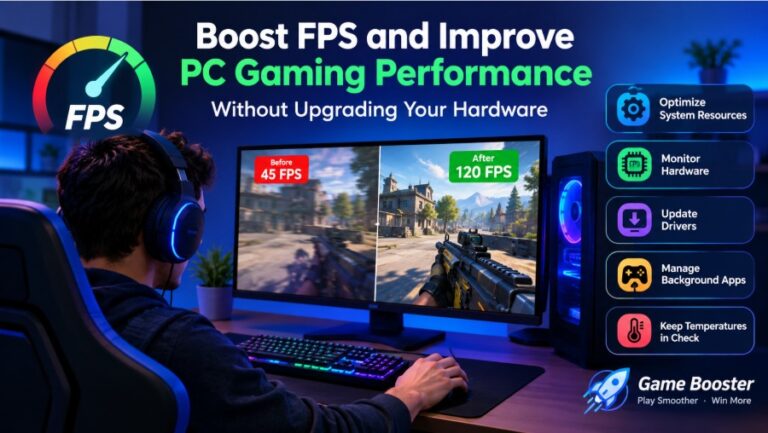
A smooth gaming experience depends on more than having a powerful graphics card. Even a capable gaming PC can suffer from frame drops, stuttering, high ping, slow loading, or sudden performance issues. These problems can become especially frustrating when playing competitive games where every second matters.
The good news is that upgrading your entire PC is not always the first solution. Before spending money on new hardware, you can improve your current setup by optimizing Windows, updating drivers, managing background applications, cleaning unnecessary files, and making better use of your CPU and GPU.
For gamers who want a simpler approach, a dedicated optimization utility such as Smart Game Booster can bring several of these tasks together. It is designed to help PC gamers improve system performance, monitor hardware, update drivers, and optimize gaming-related settings from one place.
In this guide, we will look at some practical ways to improve gaming performance and explain how a Game Booster can fit into that process.
Why Does FPS Drop While Gaming?
FPS, or frames per second, represents how many individual frames your computer displays each second. Higher and more stable FPS generally makes gameplay feel smoother, although the ideal level depends on the game, monitor, and hardware.
There is no single reason why FPS drops. Several factors can affect gaming performance.
One common cause is insufficient CPU or GPU resources. Modern games can put considerable pressure on processors and graphics cards, particularly when using high-quality textures, ray tracing, high resolutions, or other demanding visual settings.
Background applications can also consume system resources. Web browsers, launchers, cloud-sync programs, recording software, and other applications may use RAM or CPU power while a game is running.
Outdated graphics drivers are another possible problem. Driver updates can include performance improvements, compatibility fixes, and solutions for game-specific issues.
Heat can also affect performance. When hardware becomes too hot, it may reduce its operating speed to control temperatures. This process can result in lower performance or inconsistent frame rates.
Network problems should be considered separately. Poor internet performance does not necessarily reduce your computer’s FPS, but high ping and packet loss can make an online game feel slow or unresponsive.
Simple Ways to Improve Gaming Performance
Before installing any optimization software, there are several basic steps every PC gamer can try.
1. Close Unnecessary Background Programs
Check which applications are running before launching your game. Programs that are not needed during gameplay can consume CPU, RAM, storage activity, or network bandwidth.
You do not need to close everything. Focus on applications that are clearly unnecessary and use significant resources.
2. Update Your Graphics Drivers
Your GPU driver acts as an important connection between Windows, your graphics card, and your games. Keeping it updated can help with compatibility and stability.
It is particularly useful to check for driver updates when a new game has recently been released or when you are experiencing graphical problems.
3. Adjust In-Game Graphics Settings
Ultra settings are not always necessary for an enjoyable gaming experience. If your FPS is unstable, lowering demanding options can make a noticeable difference.
You can experiment with settings such as:
- Shadow quality
- Texture quality
- View distance
- Anti-aliasing
- Reflections
- Ray tracing
- Ambient occlusion
- Resolution
Instead of immediately reducing every setting to the lowest level, change demanding options one at a time and check the result.
4. Keep an Eye on Temperatures
Temperature monitoring can help you understand whether your hardware is struggling under load.
If temperatures rise significantly during gameplay, investigate airflow, dust, fan operation, room temperature, and other possible causes. Software monitoring tools can also help you see CPU and GPU temperatures while a game is running.
5. Keep Windows and Your Games Updated
Game developers frequently release patches that fix bugs and improve compatibility. Windows updates can also contain improvements and security fixes.
Keeping your operating system and games reasonably up to date can reduce compatibility problems.
What Is a Game Booster?
A Game Booster is software designed to optimize a computer for gaming by managing selected system resources and providing gaming-focused tools.
Instead of manually checking several areas of your PC, optimization software can put useful functions into one interface. Depending on the application, these functions may include system optimization, background-process management, driver updates, performance monitoring, and game-related settings.
Smart Game Booster is built specifically for Windows gaming. According to its official documentation, it includes features for boosting system performance, updating drivers, checking whether a PC can run a particular game, monitoring hardware, and protecting the gaming environment.
The advantage is convenience. Rather than manually searching through Windows settings every time you want to prepare your PC for gaming, you can use a dedicated gaming utility to handle several optimization tasks from one place.
How Smart Game Booster Can Help
Smart Game Booster takes an all-in-one approach to PC gaming optimization. Its tools are designed around several common problems gamers face, including frame drops, lag, outdated drivers, hardware temperatures, and system resource usage.
One of its main functions is PC Boost. The software can optimize selected system resources and close unnecessary background processes so that more resources are available for the game.
Its Performance section also includes tools for cleaning and optimizing the PC, updating graphics and audio drivers, and managing other gaming-related functions.
This does not mean that software can magically turn an entry-level PC into a high-end gaming machine. Hardware still sets the basic performance limits. However, reducing unnecessary resource usage and keeping the system properly maintained can help you get more consistent performance from the hardware you already have.
Using an FPS Booster for Smoother Gameplay
An FPS Booster focuses specifically on improving frame-rate performance and helping gamers understand what is happening inside their PC.
Smart Game Booster’s FPS Booster includes one-click PC Boost functionality, which is designed to optimize CPU resources, clean RAM caches, and stop unnecessary background processes. It also provides a Super Boost option for supported systems.
Another useful feature is the in-game monitoring overlay. It can display real-time FPS along with CPU and GPU usage and temperature information. This is useful because it lets you see whether a performance problem is actually related to your graphics card, processor, temperature, or another system resource.
The software also includes temperature monitoring. Watching temperatures during demanding games can help identify situations where heat may be contributing to performance problems.
Can Overclocking Increase FPS?
Overclocking can increase hardware performance in some situations, but it should not be treated as a universal solution.
Smart Game Booster’s Super Boost feature provides GPU and VRAM tuning options, including different levels of optimization. Its availability depends on the version of the software and whether the hardware supports the feature.
Before using any overclocking feature, users should understand their hardware and temperature limits. More performance can also mean additional heat and power consumption.
For beginners, it is better to start with normal optimization and monitoring rather than immediately changing advanced hardware settings.
How to Use Smart Game Booster
Getting started is relatively straightforward.
Step 1: Install the Software
Download the latest version of Smart Game Booster and follow the installation instructions. The official user manual lists support for Windows 7, 8, 8.1, 10, and 11.
Step 2: Open the Game Booster
Launch the application after installation. From the main interface, you can access its gaming optimization and monitoring tools.
Step 3: Run PC Boost
Use the PC Boost function to optimize the system before starting your game. Review the available settings rather than blindly changing everything.
Step 4: Check Your Drivers
Open the Performance section and check whether your graphics or audio drivers require updates. Keeping important drivers current can help with compatibility and stability.
Step 5: Monitor Your Hardware
Enable the monitoring features when needed. You can check FPS, CPU and GPU usage, and hardware temperatures while gaming.
Step 6: Launch Your Game
After optimization, launch the game and compare its performance with your normal experience. If FPS improves or stuttering becomes less noticeable, you can keep the settings that worked best for your PC.
What Else Can Smart Game Booster Do?
FPS optimization is only one part of the software.
The built-in Can I Run It function can help users determine whether their computer meets the requirements for a particular game. This can be useful before purchasing or installing a demanding title.
The software also includes game recording tools, monitor tuning, real-time hardware monitoring, and security-related functions.
For example, the real-time monitor can display information about hardware temperatures and resource consumption. This gives gamers more insight into what their computer is doing during demanding workloads.
The software’s driver-related functions can also make maintenance easier by helping users identify and update supported graphics and audio drivers.
What About High Ping and Lag?
FPS and ping are different things.
FPS is related primarily to how quickly your computer renders frames. Ping measures the time it takes for data to travel between your device and a game server.
You can have high FPS and still experience high ping. Likewise, you can have excellent ping but low FPS.
Smart Game Booster also provides network acceleration features for supported games and plans. Its official information says the network acceleration feature uses optimized gaming routes, while availability depends on the account level and supported games.
This can be useful for online gamers who experience connection-related issues, but network performance also depends on factors outside the software, including your internet connection, server location, routing, and congestion.
Is a Game Booster Worth Using?
For gamers who enjoy manually adjusting Windows settings, monitoring hardware, and updating drivers, a separate optimization utility may not be necessary.
For everyone else, the main benefit is convenience.
Smart Game Booster brings multiple gaming-focused tools together, including PC optimization, FPS monitoring, driver management, hardware monitoring, game compatibility checking, and additional gaming utilities.
The official product page also states that core functions are available for free, while additional features are offered through paid editions.
The important thing is to have realistic expectations. A software tool cannot replace a graphics card upgrade when a game genuinely requires more GPU power. However, it can help eliminate some avoidable sources of poor performance and make system maintenance easier.
Final Thoughts
Getting better gaming performance does not always mean buying a new graphics card or replacing your entire PC. There are several practical steps you can take first, including updating drivers, closing unnecessary background programs, adjusting graphics settings, monitoring temperatures, and keeping your system maintained.
A dedicated Game Booster can make these tasks more convenient by bringing several optimization and monitoring tools together. Smart Game Booster goes beyond basic system cleanup by offering FPS monitoring, PC optimization, driver management, hardware monitoring, game compatibility checks, and network-related features.
If your computer is capable of running your favorite games but you are dealing with inconsistent performance, trying an FPS-focused optimization tool can be a reasonable step before spending money on new hardware. Just remember that the final result will always depend on your PC’s specifications, the game you are playing, your settings, and your overall system condition.
The best approach is to measure your performance, make changes gradually, and keep the settings that provide the best balance between visual quality and smooth gameplay.


