

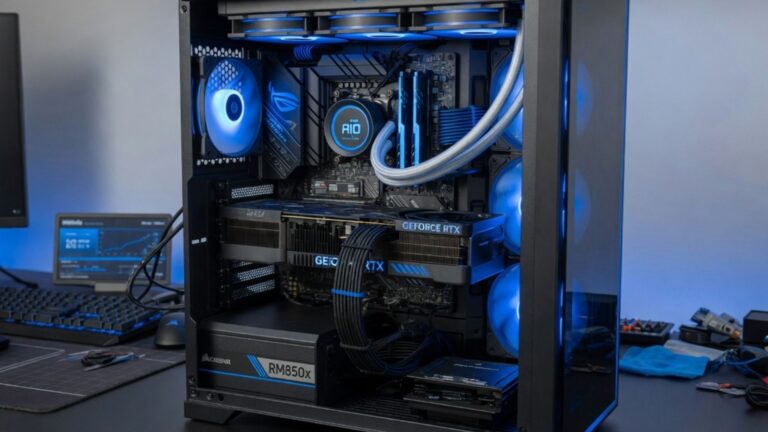
Building or upgrading a computer becomes much easier when you understand how PC components work together. Whether you want a gaming PC, workstation, office computer, streaming setup, or budget-friendly home system, every part has a specific role. The processor handles instructions, the graphics card renders visuals, RAM supports multitasking, storage saves your files, the motherboard connects everything, and the power supply keeps the system running safely. Choosing the right parts is not only about buying the most expensive hardware; it is about matching performance, compatibility, reliability, and budget to your real needs.
In 2026, PC building is more flexible than ever. Users can choose compact builds, high-performance gaming systems, creator workstations, quiet office PCs, and upgrade-friendly desktops. However, the wide range of CPUs, GPUs, memory types, storage formats, motherboard chipsets, cooling systems, and cases can feel confusing for beginners.
This guide explains the most important PC parts, what each component does, how to check compatibility, and what to consider before buying.
What Are PC Components?
PC components are the physical hardware parts that make up a computer. Each part performs a different function, but they must work together as a complete system. If one component is incompatible or underpowered, the entire computer may perform poorly or fail to run properly.
The main components in most desktop PCs include:
- Central processing unit
- Graphics processing unit
- Motherboard
- Random access memory
- Storage drive
- Power supply unit
- CPU cooler
- Computer case
- Case fans
- Operating system
- Peripherals such as monitor, keyboard, and mouse
Some computers also include extra parts such as sound cards, capture cards, Wi-Fi adapters, RGB controllers, additional storage drives, or custom liquid cooling hardware.
A balanced PC build is one where the components match each other. For example, pairing a very powerful graphics card with a weak processor may cause bottlenecks. Using a cheap low-quality power supply with expensive hardware can create reliability and safety risks.
Essential PC Components for Every Build
Every desktop computer needs a few core parts to function. Understanding these essentials helps beginners plan a build more confidently.
CPU: The Brain of the PC
The CPU, or central processing unit, handles instructions and calculations. It affects general system speed, application performance, gaming frame rates, productivity tasks, and multitasking.
When choosing a CPU, consider:
- Core count
- Thread count
- Clock speed
- CPU generation
- Socket compatibility
- Power consumption
- Integrated graphics, if needed
- Cooling requirements
- Workload type
A basic office PC may not need a high-end processor, while a video editing workstation, streaming PC, or gaming system may benefit from more cores and stronger performance.
GPU: The Graphics Powerhouse
The GPU, or graphics processing unit, handles visuals. It is especially important for gaming, video editing, 3D rendering, AI workloads, animation, and high-resolution displays.
Some CPUs include integrated graphics, which may be enough for browsing, office work, and basic media use. However, gaming and creative workloads usually require a dedicated graphics card.
When choosing a GPU, check:
- Performance level
- Video memory
- Power requirements
- Case clearance
- Monitor resolution
- Cooling design
- Supported display outputs
- Software and driver support
For gaming, the right GPU depends heavily on whether you play at 1080p, 1440p, 4K, or high refresh rates.
Motherboard: The Main Connection Hub
The motherboard connects all major PC components. It determines which CPU, RAM, storage drives, expansion cards, and ports your system can support.
Important motherboard factors include:
- CPU socket
- Chipset
- RAM type and capacity
- PCIe slots
- M.2 storage slots
- USB ports
- Networking features
- Wi-Fi and Bluetooth support
- BIOS update support
- Form factor
Common motherboard sizes include ATX, Micro-ATX, and Mini-ITX. Larger boards often provide more expansion options, while smaller boards are useful for compact builds.
RAM: Memory for Multitasking
RAM, or random access memory, stores temporary data that your computer actively uses. More RAM helps with multitasking, browser tabs, games, editing software, virtual machines, and productivity applications.
Common RAM considerations include:
- Capacity
- Speed
- Latency
- DDR generation
- Number of sticks
- Motherboard compatibility
- Upgrade room
For general use, moderate RAM may be enough. For gaming, content creation, and professional workloads, higher capacity can improve smoothness and reduce slowdowns.
Storage: SSDs, HDDs, and Speed
Storage holds your operating system, applications, games, media, and documents. Modern PCs usually use solid-state drives because they are much faster than traditional hard drives.
Common storage types include:
- SATA SSD
- NVMe SSD
- Hard disk drive
- External storage
- Hybrid storage setups
An NVMe SSD is often preferred for fast boot times, quick file transfers, and responsive applications. Hard drives are still useful for large, lower-cost storage such as backups, videos, and archives.
Power Supply: Reliable Energy for PC Components
The power supply unit, or PSU, converts power from the wall into usable power for the computer. It is one of the most important parts of a reliable build.
When choosing a PSU, consider:
- Wattage
- Efficiency rating
- Brand reputation
- Cable type
- GPU power connectors
- Protection features
- Warranty
- Future upgrade plans
Avoid choosing the cheapest power supply available. A poor-quality PSU can cause instability, crashes, and potential hardware damage. It is better to choose a reliable unit with enough wattage for your full system.
Cooling and Airflow for PC Components
Cooling keeps PC components operating within safe temperature ranges. CPUs and GPUs generate heat, especially during gaming, rendering, or heavy workloads.
Cooling options include:
- Stock CPU coolers
- Tower air coolers
- All-in-one liquid coolers
- Case fans
- Custom liquid cooling
- Thermal paste
- Airflow-optimized cases
Good airflow usually means cool air enters the case and warm air exits efficiently. A case with poor airflow can cause higher temperatures, louder fans, and reduced performance.
PC Components Compatibility Checklist
Compatibility is one of the most important parts of building a PC. Even powerful parts are useless if they do not fit or work together.
Before buying, check:
- CPU and motherboard socket compatibility
- RAM type supported by motherboard
- Case size and motherboard form factor
- GPU length and case clearance
- PSU wattage and connectors
- Cooler height or radiator support
- Storage slot availability
- BIOS support for the chosen CPU
- Monitor connection compatibility
- Operating system support
A careful compatibility check can prevent common building problems and save money.
Choosing PC Components for Gaming
Gaming PCs need a balanced combination of CPU, GPU, RAM, storage, and cooling. The graphics card often has the biggest impact on gaming performance, but the processor, memory, and monitor also matter.
For gaming builds, consider:
- Target resolution
- Refresh rate
- Game types
- Graphics settings
- GPU performance
- CPU bottlenecks
- RAM capacity
- SSD storage for game loading
- Cooling and noise levels
A competitive esports player may prioritize high frame rates at 1080p, while a cinematic single-player gamer may prefer 1440p or 4K visuals with stronger GPU performance.
Choosing PC Components for Work and Productivity
Workstation and productivity builds depend on the software being used. A writer, accountant, designer, programmer, video editor, and 3D artist may all need different hardware.
Productivity considerations include:
- CPU core count for heavy workloads
- RAM capacity for large projects
- Fast SSD storage
- GPU acceleration for creative software
- Multiple monitor support
- Quiet cooling
- Reliable power supply
- Backup storage
- Stable motherboard features
For office work and browsing, a simple build can be enough. For editing, rendering, development, and professional creative work, stronger components may save time and improve workflow.
Budgeting for PC Components
A smart PC budget starts with the purpose of the build. Spending heavily on the wrong component can create imbalance. For example, buying an expensive case while using a weak CPU and GPU may not improve real performance.
Budget priorities usually depend on use case:
- Gaming: prioritize GPU, CPU, RAM, and SSD
- Office use: prioritize CPU efficiency, SSD, and reliability
- Content creation: prioritize CPU, RAM, GPU, and storage
- Compact builds: prioritize case, cooling, and motherboard fit
- Upgrade builds: prioritize compatibility and future expansion
Always leave room in the budget for a good power supply, cooling, and storage. These parts affect reliability and daily experience.
Common PC Components Mistakes to Avoid
Many beginners make avoidable mistakes when buying or building a PC.
Common mistakes include:
- Buying incompatible CPU and motherboard
- Choosing the wrong RAM type
- Underestimating power supply needs
- Ignoring case airflow
- Buying too little storage
- Overspending on one part and weakening others
- Forgetting monitor resolution needs
- Not checking GPU clearance
- Ignoring BIOS compatibility
- Choosing poor-quality power supplies
Researching before buying is much easier than fixing a bad parts list after everything arrives.
Upgrading PC Components Over Time
One advantage of desktop PCs is upgradeability. You can often improve performance by replacing or adding specific components instead of buying a completely new system.
Common upgrades include:
- Adding more RAM
- Installing a faster SSD
- Upgrading the graphics card
- Replacing the CPU
- Improving cooling
- Upgrading the power supply
- Adding case fans
- Moving to a better monitor
Before upgrading, check whether the new part is compatible with your current motherboard, case, and power supply. Sometimes one upgrade requires another. For example, a new GPU may need a stronger PSU or more case space.
Conclusion: Choosing the Right PC Components
PC components are the foundation of every desktop computer, and choosing them wisely can make the difference between a smooth, reliable system and a frustrating build. The best parts depend on your goals, whether you need gaming performance, office reliability, creative workstation power, or a balanced everyday PC. Focus on compatibility, performance balance, cooling, power supply quality, storage speed, and future upgrade options. With careful planning, PC components can be selected to match your budget, support your workload, and deliver dependable performance for years.
FAQs
What are the main PC components?
The main PC components are the CPU, GPU, motherboard, RAM, storage, power supply, cooling system, and computer case.
Which PC component is most important for gaming?
The graphics card is usually the most important gaming component, but CPU, RAM, storage, and monitor resolution also affect performance.
How do I know if PC components are compatible?
Check CPU socket, motherboard chipset, RAM type, case size, GPU clearance, PSU wattage, and storage slot support before buying.
Is an SSD better than an HDD for a PC build?
Yes, an SSD is much faster for booting, loading apps, and gaming, while HDDs are useful for large low-cost storage.
How much RAM do I need for a PC?
Basic users may need less RAM, while gaming, editing, and multitasking builds benefit from higher capacity and faster memory.
Can I upgrade PC components later?
Yes, many desktop PCs allow upgrades such as RAM, storage, GPU, cooling, and sometimes CPU, depending on compatibility.


