

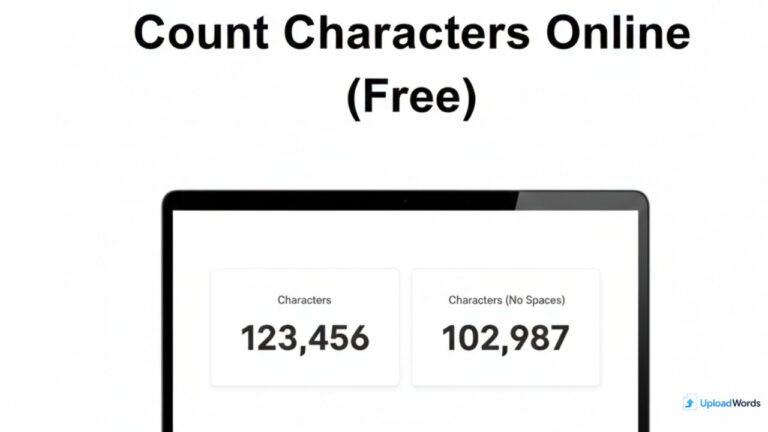
Whether you’re writing a meta description, a YouTube title, an Instagram caption, or a form field with a strict limit, you often need to count characters online fast. Character limits can break layouts, truncate important information, or reduce clicks if your text is cut off. That’s why a quick checker matters—and why many people search for characters count online tools they can use instantly.
To start immediately, use our count characters online tool and paste your text to see character totals (with and without spaces) in seconds.
In this guide, you’ll learn the fastest method to count characters, how character count differs from word count, and the best use cases for titles, meta descriptions, captions, and forms. You’ll also see a simple workflow for checking characters and improving clarity without guesswork.
Why you may need to count characters online
Character limits exist everywhere. Platforms and templates use character caps to control layout, readability, and how content appears in previews. Counting characters helps you avoid cut-off text and ensures your message stays complete.
Common reasons people use an online character counter:
- SEO snippets: meta titles and meta descriptions need to fit cleanly in search previews.
- Social captions: posts may be truncated after a certain length.
- Ad copy: platforms often enforce strict character caps for headlines and descriptions.
- Forms and applications: fields may have hard limits that reject longer text.
- Design layouts: UI cards, buttons, and banners can break with long text.
When you know the character count, you can tighten your writing without losing meaning. This is especially useful when you’re trying to keep text concise and clear.
Count Number of Characters Online (Fastest Method)
The fastest way to count number of characters online is simple:
- Step 1: Copy your text (title, caption, description, or paragraph).
- Step 2: Paste it into an online character counter.
- Step 3: Read the results for characters (with spaces) and characters (no spaces).
- Step 4: Adjust the text until it fits your target limit.
This approach works for any platform because you’re measuring the exact text you plan to publish. If the result is slightly different between tools, it’s usually due to hidden spaces, line breaks, or special characters.
Online count characters: what counts as a “character”?
When people say “character count,” they usually mean the total number of characters in your text, including letters, numbers, punctuation, and often spaces. But different tools and platforms may count certain items differently, such as:
- Spaces: many tools show counts with spaces and without spaces.
- Line breaks: copied text may include hidden line breaks that count.
- Emojis: emojis can count as one or more characters depending on encoding and platform rules.
- Special symbols: punctuation and special characters are usually included in the total.
If you’re publishing on a platform with strict limits, always test the final text exactly as you will paste it. That reduces surprises.
Character count vs word count (what’s the difference?)
Word count and character count measure different things:
- Word count measures how many words are in your text (useful for essays, articles, and content length goals).
- Character count measures how many individual characters are present (useful for titles, captions, ads, and metadata limits).
It’s common for a short sentence to have a low word count but a high character count—especially when it includes long words, punctuation, or extra spacing.
If you only need characters, a simple character count tool online works fine. But if you also want word count plus keyword insights, using a combined tool can speed up your workflow.
Best use cases (SEO titles, meta descriptions, captions, forms)
SEO titles and meta descriptions
Search results often truncate long titles and descriptions. While Google can vary snippet display based on device and query, keeping titles concise and meta descriptions clear can improve how your listing appears. Character count helps you avoid awkward cut-offs.
Social media captions
Some platforms show only the first part of a caption before “more.” If your hook appears after a long intro, you may lose attention. Counting characters encourages tighter opening lines.
Ads and headline fields
Advertising platforms enforce strict character limits for headlines and descriptions. A quick character counter helps you iterate faster and avoid rejected ads.
Forms, applications, and bios
Many forms have hard limits (like 150, 300, or 500 characters). If you exceed them, your text may be cut off or rejected. Counting characters helps you fit the strongest message into the available space.
How to count characters instantly with UploadWords
UploadWords is built for quick text checks, so you can count characters and review other helpful signals in one place. Here’s a fast workflow:
- Step 1: Paste your text into UploadWords.
- Step 2: Review characters (with spaces) and characters (no spaces).
- Step 3: Check the word count to keep messaging balanced.
- Step 4: Review top keywords and clean up repetition (optional).
If you want an all-in-one workflow for character count plus keyword insights, use UploadWords as a character count tool online and analyze your text instantly.
Tip: If you’re optimizing short text (titles, snippets, captions), your top keywords can reveal whether you’re being too generic. Tight character limits usually reward specificity.
Some users also prefer a dedicated character count tool experience for strict limits and quick copy edits. Use whichever workflow helps you iterate fastest.
Common mistakes when counting characters
1) Hidden spaces and line breaks
Copied text may include extra spaces or line breaks that count as characters. If your number seems “too high,” paste into a plain text editor and re-copy, or remove extra line breaks.
2) Emojis and special characters
Emojis can behave differently across platforms. If you’re writing ad copy or strict metadata, test your final text in the platform itself if possible.
3) Not confirming whether spaces are included
Some guidelines mention “characters” but don’t clarify spaces. If your platform doesn’t specify, use “with spaces” as the default interpretation and keep a buffer to avoid cut-offs.
FAQs
How do I count characters online for free?
You can count characters online for free by pasting your text into a character counter. The tool instantly shows character totals (with and without spaces) and often includes word count as well.
Does character count include spaces?
Most tools provide both counts: characters with spaces and characters without spaces. Many platforms treat spaces as characters, so it’s safest to check the “with spaces” total unless your guideline says otherwise.
What is the difference between character count and word count?
Word count measures how many words are in a text. Character count measures individual characters including letters, numbers, punctuation, and often spaces. Character count is especially important for titles, captions, ads, and metadata.
How many characters should a meta description be?
There is no fixed number because Google may display different snippet lengths depending on device and query. A practical approach is to keep meta descriptions concise, clear, and front-load the value, while checking character count to avoid awkward truncation.
Is it safe to paste text into an online character counter?
For general writing it is usually safe to paste text into a reputable tool, especially if it analyzes instantly in your browser. For highly sensitive content, avoid pasting private information and use only tools you trust.
Conclusion
When you have strict limits for titles, captions, ads, or metadata, the easiest solution is to count characters online before you publish. A quick character counter helps you avoid cut-offs, keep your message clear, and iterate faster—especially when you check both characters with spaces and without spaces.
Need help using the tool or understanding the results? Visit the UploadWords FAQs for quick answers.
Quick Tools & Next Steps
Use these pages to speed up your workflow:
- Count characters online — instant character totals with and without spaces.
- Character count tool online — combine character count with word count and keyword insights.
- UploadWords FAQs — help and answers about tool features and results.
Tip: For strict platform limits, keep a small buffer under the maximum to avoid unexpected truncation.

As a digital marketer, she has received multiple international awards, including Campaign of the Year at the 2023 European Content Awards and Best Use of Content Marketing at the 2022 Global Search Awards. Nicai holds an MSc in Marketing (First Class Honours) from the UCD Smurfit Graduate Business School and she has also completed the Artificial Intelligence Programme at Oxford University’s Saïd Business School. She is also a contributing writer for publications such as Entrepreneur and Esquire.

