

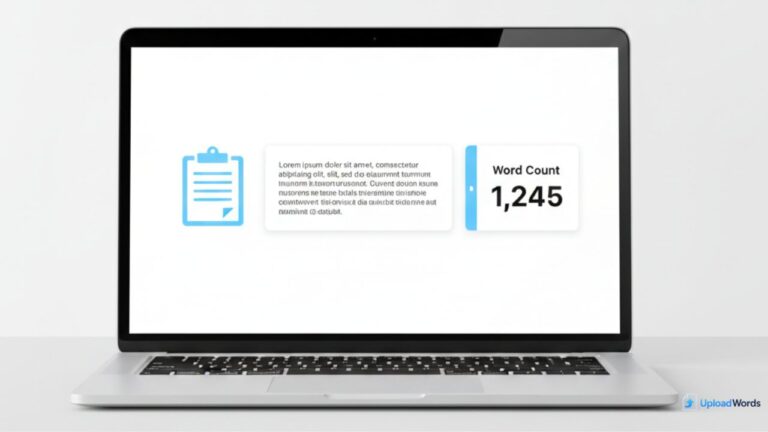
Need to check word count right now without opening a document menu or installing anything? A copy and paste word counter is the fastest way to get word count instantly—just copy your text, paste it into a tool, and read the results. This is especially useful for students, writers, marketers, and anyone working with captions, descriptions, or content drafts.
If you want the quickest option, use our copy and paste word counter to paste text and instantly see word count, characters, top keywords, and a word cloud.
Many people search for a word counter copy and paste tool because it removes friction—no downloads, no logins, and no guessing. In this guide, you’ll learn how paste-based counters work, what they measure, and how to use UploadWords in seconds.
What is a copy and paste word counter?
A copy and paste word counter is an online tool that calculates word count as soon as you paste text into an input box. Most tools also show character count, and some add extra analysis like keyword frequency and word clouds.
It’s useful when you need quick answers to questions like:
- How many words are in this paragraph, essay, or blog draft?
- How many characters are there for a title, caption, or description?
- Which words repeat most (and does the writing feel repetitive)?
- Does the text look focused on the right topic?
Because it works instantly, it’s one of the most practical tools for editing and meeting limits.
Paste Text Word Counter: How It Works
A paste text word counter reads the text you provide and counts words based on spacing and punctuation rules. It then displays totals immediately. Many tools also count characters with and without spaces, and some extract top repeating terms.
In most cases, the process is:
- Step 1: Copy text from your editor (Google Docs, WordPress, Word, notes).
- Step 2: Paste it into the tool input field.
- Step 3: View word count and characters instantly.
- Step 4: (Optional) Review keywords and word cloud to spot repetition.
If you only need the count, any word count tool online can work. But if you also want quick editing insights (top keywords, word cloud, stopwords filtering), UploadWords gives you a more complete view.
For a dedicated counter experience, you can also use our word count tool page to quickly measure text length and review results.
Word count vs character count (quick difference)
Word count and character count solve different problems:
- Word count is best for assignments, articles, blog posts, and writing requirements.
- Character count is best for titles, meta descriptions, ad copy, captions, and form limits.
Most modern tools show both, because people often need word limits and character limits at the same time.
Best use cases (students, writers, SEO, captions)
Students
Word limits are common in essays and assignments. A paste-based counter lets you verify length without relying on formatting or document settings.
Writers and editors
Writers often check word count to maintain consistent chapter lengths, blog post depth, or newsletter size. Keyword and repetition insights can also help improve clarity.
SEO and content marketing
For content workflows, word count supports coverage and structure, while top keywords and word clouds help you see topic focus and repetition. This is especially helpful when editing AI drafts or optimizing older posts.
Captions and platform limits
Social captions, bios, and form fields often have strict character limits. A paste tool helps you tighten your copy quickly and avoid cut-offs.
How to use UploadWords in 10 seconds
Here’s the fastest workflow:
- Step 1: Open UploadWords.
- Step 2: Paste your text in the input box.
- Step 3: View word count and character count instantly.
- Step 4: Scan top keywords and the word cloud for quick editing insight.
If you need a quick, clean workflow, this is a free word count tool approach that also helps you improve clarity and spot repetition patterns.
FAQs
How do I count words by copy and paste?
Copy your text from any editor, paste it into an online word counter, and the tool will display the word count instantly. Many tools also show character count and basic keyword insights.
Does the counter update instantly?
Most paste-based counters update immediately after you paste text, and some update live as you type. If the tool uses auto-analysis, it may also refresh results when you add or remove text.
Can I also count characters and keywords?
Yes. Many tools show characters (with and without spaces). Some tools also extract top keywords and generate a word cloud, which helps you review topic focus and repetition.
Is it safe to paste text into an online tool?
For general writing, it is usually safe to paste text into a reputable tool, especially if it analyzes text instantly in your browser. For sensitive content, avoid pasting private information and use only tools you trust.
What is the fastest free copy paste word counter?
The fastest option is a tool that gives results immediately after paste and shows both words and characters. UploadWords is designed for quick paste-based counting plus extra insights like top keywords and a word cloud.
Conclusion
A copy and paste word counter is the quickest way to measure text length without friction. If you want more than a number, choose a tool that also shows characters, top keywords, and a word cloud so you can improve clarity as you edit. When you’re ready, paste your text and count words instantly using UploadWords.
Need help with features or results? Visit the UploadWords FAQs.
Quick Tools & Next Steps
Use these pages to speed up your workflow:
- Copy and paste word counter — paste text and get word count, characters, keywords, and a word cloud.
- Word count tool — a focused word counter experience for quick checks.
- UploadWords FAQs — help and answers about tool features and results.
Tip: After final edits, re-check your text—small changes can shift word and character totals more than you expect.

As a digital marketer, she has received multiple international awards, including Campaign of the Year at the 2023 European Content Awards and Best Use of Content Marketing at the 2022 Global Search Awards. Nicai holds an MSc in Marketing (First Class Honours) from the UCD Smurfit Graduate Business School and she has also completed the Artificial Intelligence Programme at Oxford University’s Saïd Business School. She is also a contributing writer for publications such as Entrepreneur and Esquire.

