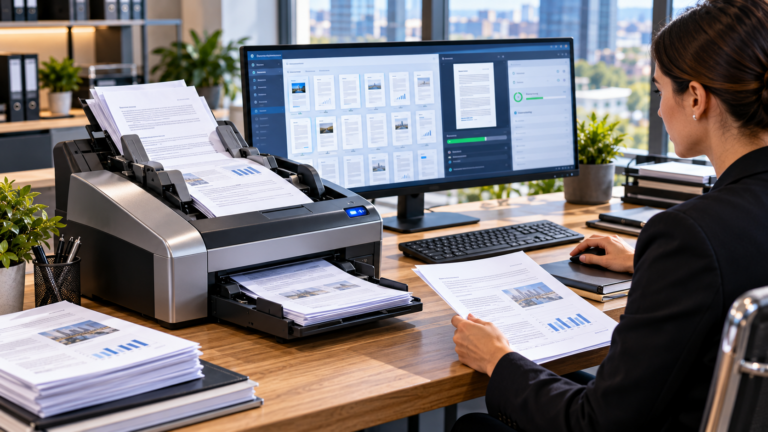
Managing paperwork can become challenging when an office handles hundreds or thousands of documents every week. Invoices, contracts, employee records, and customer forms must be organized, stored, and retrieved efficiently. A high speed scanner automatic document feeder helps simplify this process by scanning multiple paper documents in sequence without requiring users to place every page manually. For businesses moving towards digital document management, this technology can reduce repetitive handling and support a more organized workflow.
However, not every document scanner offers the same performance. Scanning speed, feeder capacity, image quality, paper handling, and software compatibility can vary significantly between models. Choosing the wrong equipment may create unnecessary delays, paper jams, and additional operating costs.
This guide explains how automatic document feeding works, explores seven important buying considerations, and provides practical advice for choosing a reliable scanner for different office environments.
What Is a High Speed Scanner Automatic Document Feeder?
A high speed scanner automatic document feeder is a document scanning system designed to process multiple sheets of paper through an automatic feeding mechanism.
The automatic document feeder, commonly called an ADF, holds a stack of documents and moves individual sheets through the scanner.
Instead of manually placing each page on a flatbed scanning surface, users can load several documents and allow the equipment to process them in sequence.
This makes ADF scanning especially useful for offices that regularly digitize paperwork.
How Does an Automatic Document Feeder Work?
An automatic document feeder uses a paper transport system to separate and move sheets through the scanning area.
Rollers pull documents from the input tray, while separation mechanisms help prevent multiple sheets from entering together.
As each page passes the image sensor, the scanner captures its contents and converts them into digital image data.
The scanning software then processes the images according to the selected settings.
Depending on the device and software, the results may be saved as PDF, JPEG, TIFF, or other supported formats.
High Speed Scanners vs Traditional Flatbed Scanners
A traditional flatbed scanner requires users to place documents on a glass surface.
This method can be useful for books, photographs, delicate papers, and irregularly shaped originals.
An ADF scanner is better suited to processing stacks of compatible loose sheets.
However, automatic feeding is not appropriate for every document.
Fragile historical records, heavily damaged papers, and certain bound materials may require flatbed scanning or specialist handling.
Why Businesses Need High Speed Document Scanners
Modern offices depend on fast access to accurate information.
Paper records can be difficult to search, share, and organize when documents are stored across multiple folders or filing cabinets.
Document digitization helps businesses create electronic copies that can be managed through suitable software.
Reducing Repetitive Administrative Work
Scanning documents individually can be time consuming.
An automatic feeder allows employees to prepare a batch of papers and process them with less manual intervention.
This can make routine scanning more convenient, particularly in departments handling frequent paperwork.
Supporting Digital Document Management
Digital documents can be organized using consistent filenames, folders, metadata, and document management systems.
When appropriate search and indexing tools are available, employees can locate information without manually searching through physical files.
However, digitization does not automatically eliminate the need to retain original paper records.
Businesses must follow their applicable record retention and legal requirements.
Improving Document Accessibility
Electronic files can be distributed to authorized employees through secure systems.
This may support collaboration between offices and remote workers.
Nevertheless, access permissions and data protection measures remain important when documents contain confidential information.
7 Essential Tips for Choosing a High Speed Scanner Automatic Document Feeder
Selecting the right scanner requires a clear understanding of document volumes, paper types, software needs, and operational costs.
The following seven considerations can help businesses compare equipment more effectively.
1. Evaluate Scanning Speed Based on Actual Workload
Scanning speed is one of the most important specifications when evaluating document scanners.
Manufacturers commonly describe performance using pages per minute or images per minute.
Understanding these measurements helps buyers compare devices accurately.
Understanding Pages Per Minute
Pages per minute, abbreviated as PPM, generally describes how many physical pages a scanner can process within one minute under specified conditions.
For example, a scanner rated at 40 PPM may process approximately 40 single sided pages per minute under its stated test conditions.
Actual performance depends on document characteristics, resolution settings, feeding conditions, and software processing.
Therefore, published speed should be treated as a comparison specification rather than a guaranteed result for every task.
Understanding Images Per Minute
Images per minute, abbreviated as IPM, measures the number of page sides captured.
When a scanner captures both sides of a sheet in one pass, each sheet can produce two images.
For example, a device processing 60 sheets per minute in duplex mode could produce 120 images per minute.
However, not every scanner maintains the same throughput in simplex and duplex modes.
Always check the manufacturer’s published specifications.
Match Speed to Daily Volume
A small office scanning a limited number of documents may not require production class equipment.
A busy records department may benefit from substantially faster scanning.
Before purchasing, estimate the number of pages processed each day and identify when scanning demand is highest.
Choose a device that can manage the expected workload without operating beyond its recommended specifications.
2. Choose the Right Automatic Document Feeder Capacity
ADF capacity determines how many sheets can be loaded into the feeder at one time.
A larger capacity can reduce the need to reload paper during extensive scanning tasks.
However, feeder capacity is different from overall scanning speed.
Understanding ADF Sheet Capacity
Some compact office scanners have feeders designed for relatively small document batches.
Larger departmental and production scanners may support hundreds of sheets.
For example, Ricoh has documented production scanners with feeder capacities reaching 750 sheets.
This does not mean every high speed scanner supports such a large paper stack.
Specifications vary considerably.
Match Capacity to Document Batches
Consider the number of sheets typically scanned in one session.
If employees regularly process 100 page batches, a feeder capable of holding the entire stack may improve convenience.
However, larger trays do not automatically improve scanning accuracy.
Paper condition, feeding mechanisms, and document preparation remain important.
Check Supported Paper Sizes
Many office scanners are designed primarily for A4 and similarly sized documents.
Other models support A3 sheets, longer documents, receipts, or additional media types.
Check the supported paper dimensions, weight range, and thickness before purchasing.
Why Mixed Document Sizes Matter
Businesses often handle documents with different dimensions.
A batch might include standard letters, invoices, delivery notes, and smaller forms.
Some scanners support mixed size scanning and automatic document size detection.
However, these capabilities depend on the device and software.
For unusual materials, follow the manufacturer’s loading and handling instructions.
3. Prioritize Duplex Scanning and Image Quality
Duplex scanning allows a device to capture both sides of a document.
This feature is especially useful when working with contracts, official forms, financial paperwork, and other double sided records.
Single Pass Duplex Scanning
Some scanners capture both sides during a single movement through the paper path.
This is commonly known as single pass duplex scanning.
It can simplify double sided processing because the document does not need to be turned over manually.
However, buyers should confirm the actual duplex capabilities of the chosen model.
Choose Suitable Scanning Resolution
Scanning resolution is commonly measured in dots per inch, or DPI.
For many ordinary office documents, 300 DPI provides a practical starting point for producing readable scans and supporting OCR.
However, small print, detailed diagrams, and other specialized content may require different settings.
Higher resolution also increases the amount of image data captured and can produce larger files.
Improve Scanned Image Clarity
Useful image processing features may include:
- Automatic page orientation correction.
- Deskewing to straighten tilted documents.
- Blank page detection and removal.
- Background cleanup for improved readability.
- Automatic cropping and document size detection.
- Colour and contrast adjustment.
These tools can reduce manual editing.
However, automatic image enhancement must be reviewed carefully when documents contain faint writing, stamps, signatures, or other important details.
Avoid Losing Essential Information
Aggressive image cleanup may remove marks that appear unimportant but carry meaning.
For financial, legal, or compliance documents, preserving the complete original information is more important than producing an artificially clean image.
4. Look for Reliable Paper Feeding and Jam Protection
Paper feeding reliability is essential when scanning large document batches.
A fast scanner provides limited value if employees must repeatedly stop to correct misfeeds.
Fortunately, some business scanners include features designed to identify feeding problems.
Ultrasonic Double Feed Detection
Certain scanners use ultrasonic sensors to detect when multiple sheets enter the paper path together.
When a possible double feed occurs, the device can pause or stop processing.
This reduces the risk of accidentally missing pages.
However, detection is not infallible.
Envelopes, labels, and other unusual originals may sometimes trigger incorrect warnings.
Paper Protection Features
Some models monitor feeding conditions and stop scanning when abnormal resistance or skewing is detected.
These features can help reduce the likelihood of document damage.
Nevertheless, they cannot guarantee that every original will remain undamaged.
Important or irreplaceable documents deserve additional care.
Prepare Documents Before Scanning
Remove staples, paper clips, and loose attachments where appropriate.
Straighten folded corners and organize sheets into suitable batches.
Avoid forcing damaged or unsuitable materials into the feeder.
Use Appropriate Handling for Fragile Paper
Very thin, torn, or delicate documents may require a carrier sheet or alternative scanning method if supported by the equipment.
Always follow the manufacturer’s instructions rather than assuming that every scanner can safely handle fragile materials.
5. Choose OCR and Document Management Capabilities
Scanning converts paper into digital images, but image files are not always searchable.
Optical character recognition, commonly called OCR, can make document content easier to locate and reuse.
What Is OCR Technology?
OCR software analyzes scanned images and attempts to identify letters, numbers, and other characters.
It can then produce searchable text or support conversion into editable formats.
For example, a scanned invoice may become searchable by supplier name or invoice number.
This can improve document retrieval when files are organized correctly.
Searchable PDF Documents
A searchable PDF can contain a scanned page image together with a recognized text layer.
Users may be able to search or select the text depending on the file and viewer.
However, OCR accuracy depends on the source quality, language, handwriting, layout, and software.
Always verify important information before relying on recognized text for business decisions.
Integrating With Document Management Software
Some scanners offer software that supports automated naming, folder selection, batch separation, and document classification.
Depending on the system, scanned files may be transferred into document management platforms or authorized network storage.
These features can simplify repetitive administrative processes.
Confirm Software Compatibility
Check whether the scanner supports your operating system and preferred applications.
Relevant compatibility details may include TWAIN, WIA, or ISIS driver support, depending on the scanner and software environment.
Compatibility should be confirmed using current manufacturer documentation.
6. Consider Connectivity and Document Security
A scanner may be used by one employee or shared across an entire department.
The required connectivity and security features depend on the working environment.
USB Document Scanners
USB scanners connect directly to a compatible computer.
They can be suitable for individual workstations or small offices where scanning is managed locally.
These devices may provide a straightforward setup without requiring network scanning functions.
Network and Wireless Scanning
Some scanners include Ethernet or wireless connectivity.
Network enabled devices may allow authorized users to send documents to supported destinations without connecting through a single workstation.
However, available functions depend on the scanner, software, and network configuration.
Protect Confidential Documents
Businesses should establish clear procedures for handling scanned information.
Sensitive files may contain customer records, employee details, financial information, or private business documents.
Appropriate safeguards can include:
- Restricting access to authorized users.
- Selecting approved storage destinations.
- Applying suitable file and transmission encryption.
- Maintaining secure accounts and device settings.
- Keeping scanner firmware and associated software updated.
- Following organizational record retention and deletion policies.
Review Cloud Scanning Requirements
Cloud connected scanning may be useful for distributed teams.
However, businesses should understand how information is transmitted, stored, and accessed.
Before enabling cloud services, review the provider’s security documentation and applicable privacy requirements.
Security should be part of the purchasing decision rather than an afterthought.
7. Evaluate Maintenance and Total Ownership Cost
The purchase price is only one part of scanner ownership.
Operating costs may include replacement rollers, cleaning materials, service arrangements, software licenses, and employee time.
A lower priced device may become less economical if it requires frequent maintenance or cannot manage the intended workload.
Understand Recommended Daily Duty
Scanner manufacturers may publish recommended or maximum daily scanning volumes.
These specifications provide guidance about the workload a device is intended to handle.
They should not be confused with scanning speed or feeder capacity.
For example, a fast scanner with a relatively low recommended daily volume may be unsuitable for continuous high volume departmental work.
Plan for Roller Replacement
ADF scanners use components such as pickup and separation rollers.
These parts experience wear during repeated paper feeding.
Ricoh’s scanner maintenance guidance identifies cleaning and replacement of consumable components as important for stable operation.
Follow the maintenance schedule for the actual device rather than using a universal replacement interval.
Consider Support and Warranty Coverage
Before purchasing, check the availability of replacement parts, manufacturer support, and repair services.
For offices that depend heavily on scanning, unexpected downtime can disrupt important workflows.
A suitable maintenance arrangement may therefore provide value beyond the initial equipment price.
How to Use a High Speed Scanner Automatic Document Feeder
A consistent scanning procedure can improve accuracy and reduce unnecessary interruptions.
The following workflow applies broadly to compatible office scanning equipment.
Step 1: Organize the Documents
Sort documents according to their intended destination or category.
Remove unsuitable attachments and check for damaged paper.
Keep pages in the correct order.
Step 2: Load the Feeder Correctly
Place the documents into the ADF according to the scanner’s instructions.
Adjust the paper guides so the stack remains aligned.
Do not exceed the stated feeder capacity.
Step 3: Select the Scan Settings
Choose the appropriate resolution, colour mode, simplex or duplex operation, and output format.
Enable relevant image correction features when suitable.
For searchable files, select OCR processing if supported.
Step 4: Start the Scan
Begin processing and monitor the first pages to confirm correct feeding.
If the scanner detects a jam or multiple sheets, follow the device instructions before continuing.
Step 5: Review the Results
Check that all expected pages appear in the correct order.
Inspect text, signatures, images, and page edges for missing or distorted information.
Step 6: Store Documents Securely
Save the completed files in the authorized location.
Use consistent filenames and appropriate access permissions.
Where necessary, retain the original paper documents according to applicable policies.
Who Benefits From High Speed ADF Scanners?
Automatic document feeding supports organizations that regularly process paper records.
However, different industries have different operational and security requirements.
Accounting and Finance Departments
Finance teams handle invoices, receipts, expense records, and other documents.
Batch scanning can help prepare these records for electronic filing and review.
OCR may assist with searching, but financial details should be verified before being entered into accounting systems.
Healthcare Organizations
Healthcare providers may digitize authorized administrative forms and patient documents.
Because these records can contain sensitive information, equipment and workflows must meet applicable privacy, access control, and retention requirements.
Legal Offices
Legal professionals often manage contracts, correspondence, and case documentation.
Document scanning can support electronic organization and authorized access.
However, firms must preserve document integrity and comply with relevant professional obligations.
Education and Administration
Schools, universities, and administrative departments may use ADF scanners for applications, correspondence, and records.
The appropriate device depends on daily volume and the types of documents being processed.
Logistics and Business Operations
Shipping records, delivery documents, and supplier paperwork can create significant administrative workloads.
Batch scanning may support more organized electronic record management.
Common High Speed Scanner Problems and Solutions
Even professional scanning equipment can experience problems.
Understanding common causes helps employees respond without unnecessarily damaging documents or equipment.
Frequent Paper Jams
Paper jams may result from worn rollers, damaged documents, overloaded feeders, or incorrect guide positioning.
Check the paper condition and clean or maintain the device according to its manual.
Multiple Sheets Feeding Together
Double feeds may occur when sheets cling together or separation components become worn.
Review the paper stack, remove unsuitable materials, and inspect feeding components where permitted.
Scanned Pages Have Lines or Streaks
Dust, adhesive residue, or marks on the scanner glass can produce unwanted lines.
Use the recommended cleaning procedure and materials.
Do not apply unsuitable chemicals directly to sensitive scanner components.
Documents Appear Crooked
Misaligned paper guides or uneven stacks may result in skewed scans.
Correct the loading position and enable suitable deskewing features.
If the problem continues, inspect the feeding system according to manufacturer guidance.
OCR Produces Incorrect Text
Recognition errors may result from low resolution, faded printing, unusual fonts, or poor image quality.
Try a suitable resolution, improve source clarity, and review the OCR language settings.
Always verify important extracted data.
High Speed ADF Scanner vs Multifunction Printer
Many multifunction printers include automatic document feeders.
However, a dedicated document scanner may be better suited to sustained scanning workloads.
Dedicated Document Scanners
Dedicated scanners often prioritize document feeding, image processing, and scanning software.
Some models provide advanced separation mechanisms, extensive batch processing features, and higher duty specifications.
Multifunction Printers
A multifunction printer combines printing, copying, and scanning.
This can be convenient for offices with modest scanning requirements.
However, its document feeding capabilities may be less specialized than those of a purpose built scanner.
Which Is Better for Your Office?
Choose based on actual scanning volume, paper types, software requirements, and workflow.
A multifunction printer may be sufficient for occasional scanning.
A dedicated ADF scanner may be more appropriate when employees process large batches or need specialized document management features.
How to Improve Office Scanning Productivity
Purchasing a faster scanner is only part of improving document processing.
A well organized workflow can reduce unnecessary manual work and improve filing consistency.
Standardize Scanning Settings
Create suitable presets for common document types.
For example, ordinary office records may use a standard resolution and searchable PDF output.
More detailed documents may require different settings.
Use Consistent File Naming
Establish a naming convention that makes documents easy to identify.
Relevant information may include document type, reference number, and date.
Avoid placing unnecessary personal information in filenames.
Review Scanning Accuracy
Create a checking process for important records.
This may involve verifying page counts, inspecting sample pages, and confirming that documents were stored in the correct location.
Train Employees Properly
Staff should understand document preparation, paper loading, basic troubleshooting, and secure file handling.
Appropriate training can reduce avoidable errors and prevent misuse of equipment.
Frequently Asked Questions
What is a high speed scanner automatic document feeder?
A high speed scanner automatic document feeder is a scanning device that automatically processes multiple paper sheets, reducing the need to scan every page manually.
How fast can a high speed ADF scanner scan documents?
Scanning speeds vary by model. Some office scanners process dozens of pages per minute, while production scanners can offer substantially higher speeds.
Can an automatic document feeder scan both sides of a page?
Yes, scanners equipped with duplex functionality can scan both sides. Single pass duplex models capture both sides during one movement through the feeder.
What is the best ADF capacity for office scanning?
The best capacity depends on typical batch sizes. Choose a feeder that comfortably handles routine document stacks without frequent reloading.
Does a high speed scanner support OCR?
Many document scanners work with OCR software that can create searchable files. However, OCR features and licensing vary between models and software packages.
How do you maintain a high speed document scanner?
Clean the feeding rollers, glass, and other specified components according to manufacturer guidance. Replace consumable parts when recommended or necessary.
Conclusion
A high speed scanner automatic document feeder can improve document processing by combining automatic paper feeding, efficient scanning, and digital file management. Choosing the right equipment requires careful consideration of speed, feeder capacity, duplex functionality, OCR, document security, and ongoing maintenance costs. Businesses should match scanner capabilities to actual workloads rather than relying on performance claims alone. With proper preparation, regular maintenance, and reliable document management procedures, an ADF scanner can become a valuable part of an organized and efficient office.