

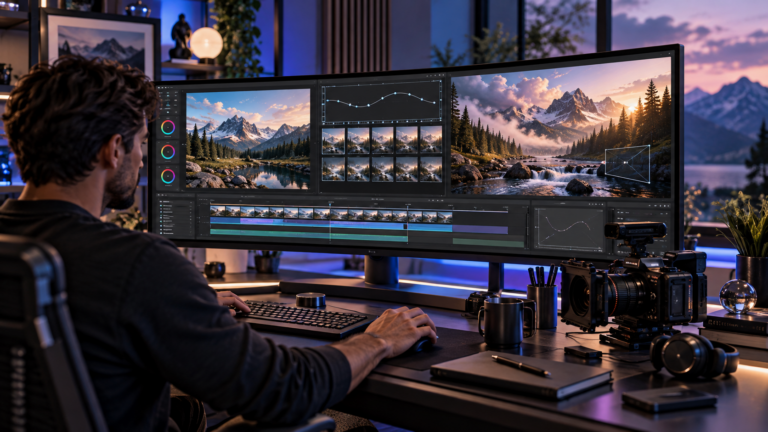
A single photograph can capture a striking moment, but motion can turn it into a story. image to video AI helps creators transform still pictures into short animated clips by generating movement, camera effects, and changing details between frames. Instead of organizing a video shoot for every idea, you can begin with a product photograph, illustration, portrait, or landscape and guide the animation through a written prompt. The result can support social media, visual storytelling, presentations, or marketing when it is reviewed and edited carefully.
Better source images, restrained motion, clear creative direction, and responsible publishing decisions usually matter more than adding complicated instructions. This guide explains the process, offers ten useful techniques, and shows how to choose tools and prepare videos for online discovery.
What Is Image to Video AI?
Image to video AI is generative technology that uses a still image as visual guidance for producing a sequence of moving frames. Many tools allow the user to describe the action, camera movement, or atmosphere in natural language. The software then creates a short clip that attempts to preserve the original image while introducing motion over time.
It differs from a conventional slideshow. A slideshow displays existing pictures sequentially, often with transitions. Image based video generation creates new visual frames between and beyond the information available in the original picture. It also differs from simple pan and zoom effects, which move a virtual camera across an unchanged photograph without inventing movement within the scene.
How Does Image to Video AI Work?
A generation model interprets the visible subject, layout, lighting, and other details of the uploaded image. It uses learned visual patterns and the user’s instructions to generate a plausible sequence of frames. Depending on the tool, the source picture may serve as the opening frame or as a visual reference for the clip.
For example, a picture of a quiet lake could become a video with small ripples, gently shifting reflections, and clouds moving across the sky. The uploaded image supplies the appearance of the setting, while the text directs the desired changes.
Where the Technology Still Needs Help
Generated motion can look impressive but remain physically inaccurate. Hands may change shape, objects can shift positions, text may become distorted, and a character’s appearance can change between frames. Treat every result as a draft until it passes visual and factual review.
Why Creators and Businesses Use Image to Video AI
The practical advantage is flexibility. Existing photography and artwork can become starting points for additional formats without demanding an entirely new production setup. A brand may animate an approved product image for a promotional concept.
Other useful applications include the following:
- Social content that introduces movement to existing campaign visuals.
- Website clips that demonstrate a mood, concept, or creative direction.
- Storyboards and pitch materials used to communicate a proposed scene.
- Real estate or architectural concepts, clearly identified as visualizations rather than recorded reality.
- Event promotions built from properly licensed photographs or graphic designs.
- Short atmospheric transitions for videos that already contain recorded footage.
These uses can reduce some filming and animation tasks, but generating multiple versions, correcting artifacts, recording narration, and editing still require time.
How to Turn an Image Into a Video With AI
A reliable workflow starts before opening the generator. Decide what the viewer should notice, how the image should move, and where the finished clip will appear.
Step 1: Choose a Suitable Source Image
Select a sharp, well exposed picture with a clear subject. Avoid blurry faces, compression artifacts, and unwanted writing. Generation systems may carry these defects into the video or make them more obvious. Use an image you own or have permission to animate, particularly when recognizable people or protected artwork appear.
Step 2: Match the Image to the Destination
Plan for a vertical composition when creating a mobile first social clip, or a wider frame for a website, presentation, or landscape video. Avoid cropping off hands, faces, or key product details.
Step 3: Identify the Motion
Choose one main action before writing a prompt. The subject could turn slightly, a curtain could move in a breeze, or the camera could slowly move toward a building.
Step 4: Write a Clear Prompt
Describe what should move and how. A useful structure is camera direction, subject movement, and environmental detail. For example: “The camera slowly pushes toward the cabin as tree branches sway gently and soft mist drifts through the valley.” The input photograph already communicates the cabin’s appearance, so repeating every visible detail is rarely necessary.
Keep the First Prompt Simple
Start with a single shot and a few specific instructions. After examining the result, add one adjustment at a time.
Step 5: Generate and Inspect the Clip
Set the available duration, frame shape, and quality options according to your project. Review the entire result, not just the first second. Check whether faces remain recognizable, objects keep their proportions, lighting behaves sensibly, and movement is consistent with the scene. Generate another version when important elements drift.
Step 6: Edit and Export
Trim unwanted frames, adjust pacing, add licensed music or narration, and include readable captions where needed. Export in a format supported by your publishing platform.
10 Image to Video AI Tips for More Natural Results
Technical settings matter, but thoughtful creative decisions have a strong influence on whether a clip feels intentional. These ten techniques provide a useful starting point for beginners and experienced editors.
1. Build Around One Clear Subject
Busy photographs leave the model with many possible points of attention. Choose an image with a distinct main subject and a readable foreground or background. If several people or products must appear, specify which one should move.
2. Describe Motion Instead of Rewriting the Photograph
Use prompts to explain the action rather than restating details already present. “The camera moves gently from left to right while the curtains sway” is more actionable than a lengthy description of the furniture and wall colors. Runway’s official prompting guidance similarly emphasizes motion, camera behavior, and progression when working from an existing image.
3. Start With Slow, Controlled Camera Movement
A gentle push forward, short pan, or static shot can be effective for products, architecture, and landscapes. Aggressive camera moves may reveal geometry the source image never showed, increasing the opportunity for inconsistent details.
4. Make Subject Movement Physically Plausible
Consider how a real object would behave. Fabric should respond to a breeze, reflections should relate to nearby surfaces, and a person’s movements should respect the pose shown in the reference image.
5. Use Light and Atmosphere Carefully
Environmental effects can make a frame feel alive without fundamentally changing its composition. Try moving clouds, delicate dust, subtle water ripples, or shifting daylight.
6. Keep Early Clips Short
Short scenes are easier to review for visual drift and continuity. Begin with one simple movement, then extend the concept through separate shots if it works.
7. Protect Faces, Hands, and Product Details
Inspect areas where viewers expect accuracy. For personal portraits, watch for changes to identity or expression. For commercial products, verify package shape, hardware, logos, and color.
8. Keep Multiple Shots Visually Consistent
When creating a series of clips, reuse the same approved reference images, descriptions of movement, and lighting direction when possible. Save your successful prompts and generation settings.
9. Add Sound and Captions With Purpose
Music can reinforce pacing, narration can explain a concept, and captions can serve people watching without audio. Ensure the sound is licensed and that on screen statements are accurate. Avoid synthetic voices that imitate identifiable people without authorization.
10. Compare Versions Against a Clear Goal
Do not choose a result simply because it looks dramatic. Assess whether it preserves the original subject, expresses the intended movement, avoids distracting artifacts, and meets the brief.
Image to Video AI Prompt Examples You Can Adapt
Effective prompts describe observable action. The following examples are starting points, not guarantees of identical results across services.
Product Photography
“The camera slowly circles the wristwatch from a slight angle as soft reflections move across the polished metal. The watch shape, dial, and markings remain consistent. Clean studio lighting.”
Nature and Travel Scenes
“A static wide camera holds on the mountain valley. Clouds drift gradually from right to left, tall grass moves in a light breeze, and sunlight remains soft and consistent.”
Label fictional or heavily altered footage appropriately instead of presenting it as documentary evidence from a destination.
Portrait Animation
“The person maintains their original appearance, gives a small natural smile, and turns their head slightly toward the window. The camera remains steady and the background stays unchanged.”
Only animate an identifiable person’s photograph with suitable permission. A respectful use of portrait animation should not suggest the person performed or endorsed actions that never occurred.
Interior Design Visualization
“The camera makes a slow forward movement through the living room while sunlight shifts gently across the floor and the curtain moves slightly. Furniture placement and architectural proportions remain stable.”
This can communicate the mood of a proposed design, but it should not be presented as verified footage of a completed property.
How to Choose the Right Image to Video AI Tool
The best image to video AI platform depends on what you need to create, how much control you require, and whether the output can legally support your intended use. Rather than choosing from promotional demonstrations alone, test a representative image before committing to a subscription.
Consider these features:
- Image input support for the formats and resolutions you use.
- Motion controls for subjects, camera movement, and scene timing.
- Suitable aspect ratios, clip lengths, and export quality.
- Reasonable generation costs, preview options, and revision limits.
- Clear terms for commercial usage, uploaded content, and privacy.
- Options for editing, extending, and downloading completed work.
Popular Approaches to Compare
Runway provides image guided generation and documents prompting techniques centered on movement and camera direction. Adobe Firefly offers image based video generation and explains its commercial usage approach, while cautioning that eligibility can vary by model, including partner models. Features, pricing, and access can change, so check each provider’s current documentation before selecting a tool.
Evaluate Rights Before Production
Confirm whether your license covers the particular use, whether the source image belongs to you, and whether third party faces, trademarks, or other protected material require permission.
Common Image to Video AI Problems and How to Fix Them
Unexpected results do not always require a completely new image. Small changes in instructions can make a test easier to evaluate.
Motion Looks Unnatural
Reduce the speed, remove secondary actions, and use simpler camera direction. A single gentle pan may work better than a rapid orbit combined with subject movement.
The Subject Changes Appearance
Use a cleaner source image with the subject clearly visible. Minimize movement that exposes unseen angles and test whether the tool provides additional image references or character consistency controls.
Words and Logos Become Distorted
Do not rely on generated frames to reproduce exact lettering. Composite approved typography and logos in a conventional editor after generating the background, when that workflow is appropriate.
The Clip Feels Too Generic
Replace vague adjectives with a concrete action, camera choice, and mood. For example, describe how the lens approaches the subject or how light moves through a room rather than asking only for a “cinematic” result.
Responsible Use of AI Generated Video
Responsible production matters as much as visual quality. Before uploading a picture, check whether the service stores it, uses it for training, or makes generations publicly visible. Do not upload confidential client material without authorization and suitable data protections.
Realistic generated footage can also mislead viewers. Avoid depicting real people saying or doing things they never did, and disclose meaningful alterations when context or platform rules require it. YouTube, for example, requires disclosure for certain realistic AI generated or meaningfully altered content, including fabricated realistic events and portrayals of a real person performing actions they did not perform.
For factual, educational, or commercial projects, verify every claim independently of the video. The appearance of realism is not evidence that the depicted action happened or that an advertised product functions as shown.
How to Optimize Image to Video AI Content for Search
Publishing a polished clip is only part of discovery. If the video appears on a website, surround it with genuinely useful text that explains the topic, the intended audience, and what the viewer will learn. Use a descriptive title, a relevant thumbnail, accessible captions, and a concise summary rather than repeating a keyword unnaturally.
For videos hosted on your own site, Google recommends making video content discoverable, using stable and accessible thumbnails, and providing accurate metadata. Where appropriate, a dedicated watch page and valid VideoObject structured data can help search engines understand the video, although neither guarantees prominent placement in results.
Generative search systems also benefit from clear context. A brief explanation of how the clip was produced, what is real or simulated, and which details were reviewed gives readers and automated systems more reliable information to interpret. Use relevant language such as photo animation, AI video generator, motion prompts, cinematic camera movement, and video editing naturally where those ideas genuinely apply.
Frequently Asked Questions
What is image to video AI used for?
It turns still images into short moving clips for content creation, marketing concepts, visual storytelling, presentations, and other creative projects.
Can image to video AI create realistic videos from photos?
It can generate convincing movement, especially in simple scenes, but realism varies by source image, prompt, model, and the complexity of the requested action.
What is the best image to video AI tool for beginners?
The best choice is one with straightforward image uploads, clear motion controls, transparent pricing, and usage terms that fit your project. Test sample images first.
How do I write a good image to video AI prompt?
Describe one main action, the camera movement, and any essential environmental changes. Keep the first prompt simple, then refine it after reviewing the result.
Can I use AI generated videos for commercial purposes?
Possibly, but you must check the provider’s terms, source image rights, permissions, and relevant advertising or platform requirements before publishing.
Will image to video AI replace traditional video editing?
It can assist with short generated shots, but editing, factual review, audio, brand consistency, and quality control still benefit from human expertise.
Conclusion
Image to video AI gives creators a practical way to experiment with movement and visual storytelling using pictures they already have. The strongest results come from clear images, realistic motion requests, careful iteration, and thoughtful editing rather than elaborate prompts alone. By checking rights, reviewing every generated frame, and providing useful publishing context, creators can use the technology effectively while maintaining audience trust. As the tools evolve, these fundamentals will remain valuable for making videos that serve a real purpose.


