

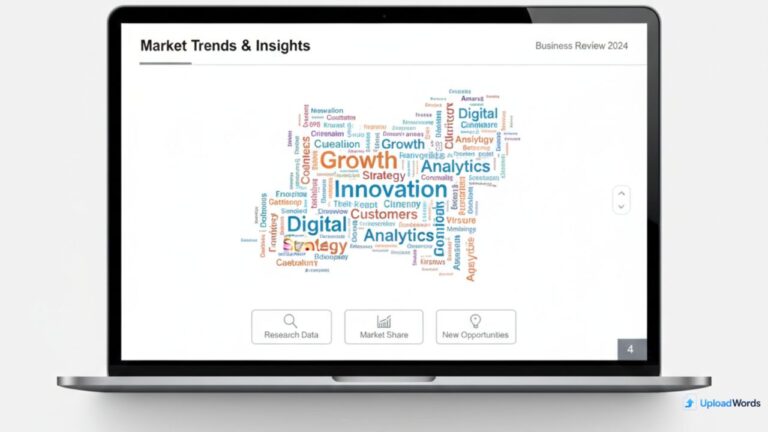
Word clouds are one of the fastest ways to turn text into a slide-ready visual. Instead of showing a long list of keywords, you can show the main themes in seconds—perfect for survey summaries, meeting notes, customer feedback, training sessions, and executive updates. If you need a word cloud generator PowerPoint users can trust, the easiest workflow is simple: generate your cloud, export a PNG, and insert it into your slides.
To get started right now, use our tool to download PNG word cloud and add it to PowerPoint or Google Slides.
This guide covers why word clouds work so well in presentations, how to insert them into PowerPoint, export tips for clean PNG quality, a Google Slides method, and quick FAQs.
Why word clouds work in presentations
Slides are meant to be scanned. A word cloud is a high-impact visual because it communicates “what matters most” without forcing your audience to read paragraphs. A good word cloud slide can replace multiple bullet slides.
- Instant summary: highlights the top themes from text
- Audience-friendly: easier to interpret than raw data tables
- Storytelling: supports “before vs after” comparisons (two clouds)
- Engagement: a visual break from bullet-heavy decks
Common presentation use cases include:
- Customer feedback themes (reviews, NPS comments, surveys)
- Workshop outputs (brainstorm keywords, sticky-note summaries)
- Training highlights (key takeaways from a session)
- Research summaries (top terms in reports or transcripts)
How to insert a word cloud into PowerPoint
Most people ask for a “word cloud generator in PowerPoint,” but the easiest method is actually outside PowerPoint: generate a PNG and insert it as an image. This keeps your slides lightweight and ensures the cloud looks the same on every device. The same approach can save time when you need to crop an image for a presentation, since editing it beforehand helps everything display more smoothly during playback.
Step 1: Generate your word cloud (paste text or keywords)
Start with your text source—survey responses, notes, or a curated keyword list. If you want a standard generator page, you can use: /word-cloud-generator-free/.
Quick tip: If certain words must appear larger, repeat them a few times in your input. This is a simple way to influence weighting without extra settings.
Step 2: Export as PNG
Exporting as PNG is ideal for presentations because PNG keeps edges crisp and handles typography well. If your slide has a colored background, transparent PNG (if available) helps the cloud blend cleanly.
Step 3: Insert PNG in PowerPoint
In PowerPoint (Windows/Mac):
- Open your slide
- Go to Insert → Pictures
- Select your PNG word cloud
- Resize while holding Shift (keeps proportions)
- Align it using PowerPoint’s guides or Align tools
To make it look “designed,” place your word cloud inside a simple layout:
- Title at top (one line)
- Word cloud centered (main visual)
- Context line under it (source + sample size)
Bonus: Create a “two-cloud comparison” slide
One of the best storytelling tricks is a side-by-side comparison:
- Before vs after training
- Customer feedback: Q1 vs Q4
- Two segments: new users vs power users
Generate two clouds, export both PNGs, then place them in two columns with short labels. This turns a simple word cloud into a “narrative slide.”
PNG export tips (so it stays sharp on slides)
Blurry word clouds happen when the export is too small, then stretched on a slide. Use these PNG tips for a crisp look:
- Export bigger than needed: scale down in PowerPoint (never scale up).
- Limit tiny words: fewer unique words = larger, more readable text.
- Use high contrast: dark text on light background (or vice versa).
- Keep colors simple: 2–4 colors match most corporate themes.
- Avoid heavy rotation: rotated words are harder to read on a projector.
If you want the “best word cloud generator free” output for slides, prioritize readability over density. A cloud that’s easy to read from the back of a room beats a cloud filled with every single word.
Google Slides method (fast alternative)
If you’re building decks in Google Slides, the workflow is the same: generate a PNG and insert it. A word cloud generator Google Slides setup is basically “PNG export + insert image.”
How to insert into Google Slides
- Open your Google Slides deck
- Go to Insert → Image
- Upload your PNG
- Resize and align
- Add a title + source caption
Slides tip: Put the word cloud on a white “card” (a rectangle with subtle shadow) if your slide background is colored. It instantly looks more professional.
FAQs
Can I create a word cloud directly in PowerPoint?
PowerPoint doesn’t offer a built-in word cloud generator for most users. The easiest workflow is to generate a word cloud online, export it as PNG, then insert it into PowerPoint as an image.
What is the best format for a word cloud in PowerPoint?
PNG is the best format for slides because it preserves crisp text edges and works well at presentation size. Export at a large resolution and scale down inside PowerPoint for best clarity.
How do I stop a word cloud PNG from looking blurry?
Export a larger PNG and avoid scaling up in PowerPoint. Also reduce the number of unique words so fonts can render larger and sharper.
Is there a free word cloud generator for PowerPoint?
Yes. Many online tools let you paste text, generate a word cloud, and download PNG for PowerPoint. The key is to choose a tool that exports clean images quickly.
How do I use a word cloud in Google Slides?
Generate your word cloud as PNG, then insert it into Google Slides via Insert → Image. Add a short title and a source line to make it presentation-ready.
Conclusion
A great presentation word cloud is simple: clean text input, readable design, and a sharp PNG export. Generate your cloud, insert it into PowerPoint or Google Slides, and use it to tell a story—what themes matter, how they changed, and what your audience should do next.
Start here to download PNG word cloud, explore the standard generator at /word-cloud-generator-free/, and if you need help, contact UploadWords (support).
Quick slide-ready checklist
- Export bigger than needed and scale down in PowerPoint
- Keep colors limited and high-contrast for readability
- Use a title + source caption for context
- Compare two clouds side-by-side for stronger storytelling
Helpful links: Upload Words · Word Cloud Generator · Support

As a digital marketer, she has received multiple international awards, including Campaign of the Year at the 2023 European Content Awards and Best Use of Content Marketing at the 2022 Global Search Awards. Nicai holds an MSc in Marketing (First Class Honours) from the UCD Smurfit Graduate Business School and she has also completed the Artificial Intelligence Programme at Oxford University’s Saïd Business School. She is also a contributing writer for publications such as Entrepreneur and Esquire.

