

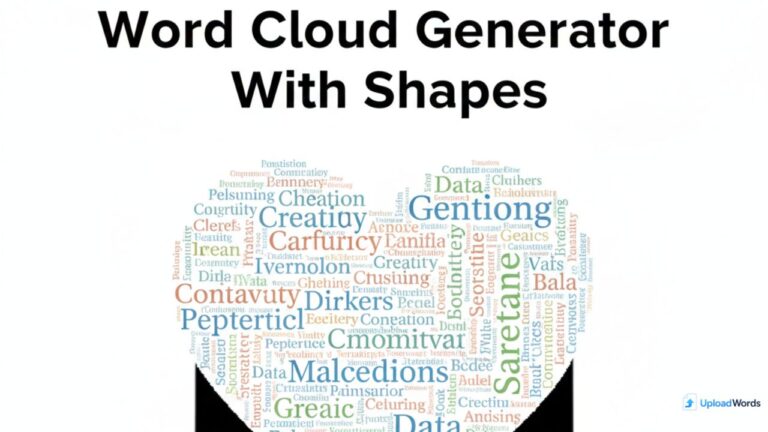
Want a word cloud that looks like a heart, a circle, a star, or even your logo? A word cloud generator with shapes lets you turn plain text into a visual that instantly communicates meaning—perfect for gifts, events, classrooms, presentations, and branded graphics.
If you’re ready to build one in minutes, try our shape word cloud generator and create a design you can download as PNG.
In this guide, you’ll learn how shape-based word clouds work, how to make a heart word cloud that looks clean (not messy), how to use custom silhouettes, and how to export a crisp PNG for sharing or printing.
Why use a word cloud generator with shapes?
A standard word cloud shows frequency: the more a word appears, the bigger it gets. But a word cloud shape generator adds an extra layer—visual meaning. The shape isn’t just decoration; it makes the message easier to understand at a glance.
- Hearts communicate appreciation, love, celebration, gratitude, and memorable moments.
- Circles feel balanced and clean for professional presentations.
- Stars work for awards, achievements, and highlight reels.
- Icons / symbols help for niche themes (music, sports, health, education).
- Logo shapes support brand identity without feeling like a generic poster.
Shape-based word clouds are also more shareable. They stand out on social posts, print beautifully on flyers, and look polished inside slides or reports—especially when you control spacing, font sizes, and color balance.
When shape word clouds work best
- Events: weddings, anniversaries, birthdays, graduations, memorials
- Classrooms: vocabulary lists, reading reflections, “word of the week”
- Teams: retrospectives, company values, customer feedback summaries
- Branding: campaign keywords, product benefits, slogan variations
- Gifts: a heart-shaped word cloud with names, places, memories, or quotes
What makes a shape word cloud generator different?
A regular word cloud tries to fill a rectangle. A shape word cloud generator uses a “mask” (a silhouette) and packs words inside that shape. The best results come from two things working together:
- Good input text: meaningful words, balanced repetition, minimal junk words
- A clean shape: simple silhouette, clear edges, enough interior space for words
When either side is weak, your result can look cluttered. For example, too many tiny words creates visual noise; a complicated logo silhouette can force awkward gaps or unreadable clusters.
How the “shape mask” works (simple explanation)
Think of the shape as a stencil. The tool places large words first (the most frequent or most important), then fills remaining spaces with smaller words. If the shape is too narrow or has sharp corners, the algorithm may struggle to fit long words—so your output becomes uneven.
This is why heart shapes usually work so well: they’re recognizable, wide enough for key words, and have smooth curves that fill naturally.
Quick start: Make a heart word cloud in minutes
Follow this fast checklist to create a heart word cloud generator-style design that looks clean and intentional.
Step 1: Prepare your words (best input formats)
You can start with any of the following:
- A paragraph of text (message, notes, letters, speech, vows)
- A list of keywords (comma-separated is easiest)
- Names, places, dates, and “memory words” for gift designs
- Customer feedback (short reviews pasted together)
Tip: If you want certain words to be larger, repeat them a few times in your input. That’s the simplest weighting method and works in most tools.
Step 2: Choose your shape (heart first)
Select a heart shape if your goal is appreciation, love, celebration, or a gift-style poster. Hearts work best with:
- Short-to-medium words
- Balanced repetition
- 2–4 main “hero” words (the ones you want big)
Step 3: Pick layout + styling that stays readable
Clean word clouds are readable from a distance. That means you should avoid:
- Too many fonts at once
- Overly complex color gradients
- Ultra-dense layouts where every word is tiny
A good default is one modern font, a white background, and a small palette (2–4 colors). Then adjust size and spacing until the top words stand out clearly.
Step 4: Export as PNG (and keep it crisp)
Export as PNG for clean edges and easy sharing. If you plan to place the word cloud on top of another background (like a card design), use a transparent background option if available.
Create a custom shape word cloud generator result (logos & designs)
Want a custom shape word cloud generator outcome using your own silhouette? You can get excellent results if the shape is prepared correctly. The shape should be a clear “filled” silhouette, not a thin outline.
Best shape types for custom word clouds
- Simple icons: heart, circle, speech bubble, lightbulb, book
- Thick logo silhouettes: filled mark, not a line logo
- Badges / emblems: wide interior space, not too many holes
- Letters: bold “A” or “M” shapes with enough fill area
Shape prep tips (the difference between “wow” and “messy”)
- Use high contrast: a solid black shape on a white background (or vice versa).
- Avoid thin outlines: outlines create narrow lanes that break words.
- Reduce tiny cutouts: complicated holes force awkward spacing.
- Keep edges clean: jagged edges create jagged word placement.
- Make it bigger than you think: more pixel area = smoother curves.
If your logo is complex, consider using only the main icon mark (without text) as the silhouette. You can add brand text as a caption below the exported PNG.
Design tips for a cleaner word cloud shape generator output
The most common mistake is trying to include everything. The best-looking word clouds are curated. Use the tips below to make your word cloud easy to read and visually balanced.
1) Curate your word list (quality beats quantity)
If you paste a long paragraph, you’ll get lots of filler words unless you clean it. For a better result:
- Remove repeated “empty” words that add no meaning (example: “really”, “just”, “thing”).
- Keep the most important nouns, themes, and emotion words.
- Combine similar forms (example: “create” and “creating” → choose one).
If you need a standard tool to generate and fine-tune a word cloud without shapes, use our mid-step tool page here: /word-cloud-generator-free/.
2) Control “hero words” (the words you want big)
A shape-based word cloud looks best when it has 2–6 hero words that create a clear focal point. You can influence hero words by:
- Repeating them more often in your input
- Removing competing words that steal visual attention
- Shortening long phrases into 1–2 powerful words
3) Choose a palette that matches the shape’s meaning
Color is part of the message. Try these simple pairings:
- Heart shapes: reds/pinks + a neutral accent
- Business/logo shapes: brand colors + one neutral (black/gray)
- Classroom shapes: bright colors but limited to 3–5 tones
Avoid using too many similar colors, because the cloud loses contrast and becomes hard to read at a glance.
4) Use spacing and rotation sparingly
Rotated words can add energy, but too much rotation hurts readability. If your tool offers rotation settings, keep it minimal—especially for gift prints or professional decks.
5) Keep the smallest text readable
If your smallest words become dots, reduce the number of unique words. A word cloud is not supposed to include every single word—just the meaningful ones.
Export options: PNG download, print quality, and transparent backgrounds
Most users want a PNG because it’s easy to share, and it stays sharp in presentations. Here are practical export tips:
- For social: export a larger PNG and scale down (crisper edges).
- For print: use the highest resolution available and avoid ultra-thin fonts.
- For overlays: pick transparent background if available; otherwise export with white and remove background in a design tool.
If you’re running multiple versions (heart shape + circle + logo), keep the same palette and font so the set looks consistent.
Troubleshooting: common issues and quick fixes
Problem: “Words don’t fit the shape”
- Shorten long words or phrases
- Reduce the number of unique words
- Use a simpler silhouette with more interior space
Problem: “My heart shape looks broken or empty”
- Add more words (or allow smaller minimum size) to fill gaps
- Increase density slightly
- Use smoother heart shape templates
Problem: “Too many tiny words”
- Remove filler words
- Keep only key themes (20–80 words often looks best)
- Increase minimum font size if the tool supports it
Problem: “Export looks blurry”
- Export at the highest resolution available
- Avoid scaling up a small PNG (scale down instead)
- Use stronger font weight for print or posters
FAQs
What is a word cloud generator with shapes?
It’s a tool that packs words into a chosen silhouette (like a heart, circle, star, or logo). The most frequent or most important words appear larger, creating a meaningful visual design.
How do I make a heart word cloud look clean and readable?
Use fewer, higher-quality words, limit your color palette, and ensure you have a few “hero” words that stand out. Avoid overly long phrases and remove filler words that create clutter.
Can I use my logo as a custom shape word cloud?
Yes—best results come from a simple, filled silhouette with clean edges. If your logo is complex, use only the icon mark as the mask and add brand text separately below the final image.
What’s the best format for downloading a shape word cloud?
PNG is the most common choice because it stays sharp and is easy to share. If you plan to overlay the cloud on another background, use a transparent PNG option if your tool supports it.
How many words should I include in a word cloud shape generator?
For clean results, start with 20–80 meaningful words. If you add too many, the smallest words become unreadable and the shape can look noisy.
Conclusion
A shape-based word cloud isn’t just a trend—it’s a fast way to turn text into something shareable and memorable. Start with a heart shape for the cleanest results, then experiment with circles, icons, and your own silhouettes as you refine your design.
When you’re ready, build your design with our shape word cloud generator, explore the standard version at /word-cloud-generator-free/, and if you have questions, check our FAQs.
Quick 30-second checklist before you download
- Make the first 3–6 words the “heroes” (largest and most visible)
- Limit colors to 2–4 for a clean, professional look
- Reduce filler words so the smallest text stays readable
- Export as PNG at the highest resolution available
More tools: Upload Words · Word Cloud Generator · FAQs

As a digital marketer, she has received multiple international awards, including Campaign of the Year at the 2023 European Content Awards and Best Use of Content Marketing at the 2022 Global Search Awards. Nicai holds an MSc in Marketing (First Class Honours) from the UCD Smurfit Graduate Business School and she has also completed the Artificial Intelligence Programme at Oxford University’s Saïd Business School. She is also a contributing writer for publications such as Entrepreneur and Esquire.

